
Besides creating a new volume, "unallocated" space can be combined into other partitions. If you use the Windows native Disk Management utility or the DiskPart command, you can only merge unallocated space into the left contiguous partition in Server 2016. If you want to merge unallocated space into the right partition, or move unallocated space in Windows Server 2016, you must run third-party software. This article provides detailed steps to move and merge unallocated space in Windows Server 2016.
Be Cautious When Moving Unallocated Space in Windows Server 2016
As mentioned above, Windows native tools cannot move unallocated space in Server 2016, so third-party software is needed. There are many server partition software options on the market, but few are safe enough. Some unreliable software could cause system and partition damage.
When moving unallocated space in Windows Server 2016, an associated partition will also be moved. The parameters of this partition must be modified correctly. In addition, all files in this partition will be moved to a new position. Any slight error will damage the system or partition. For this reason, it is highly recommended to back up your data first and run safe partition software.
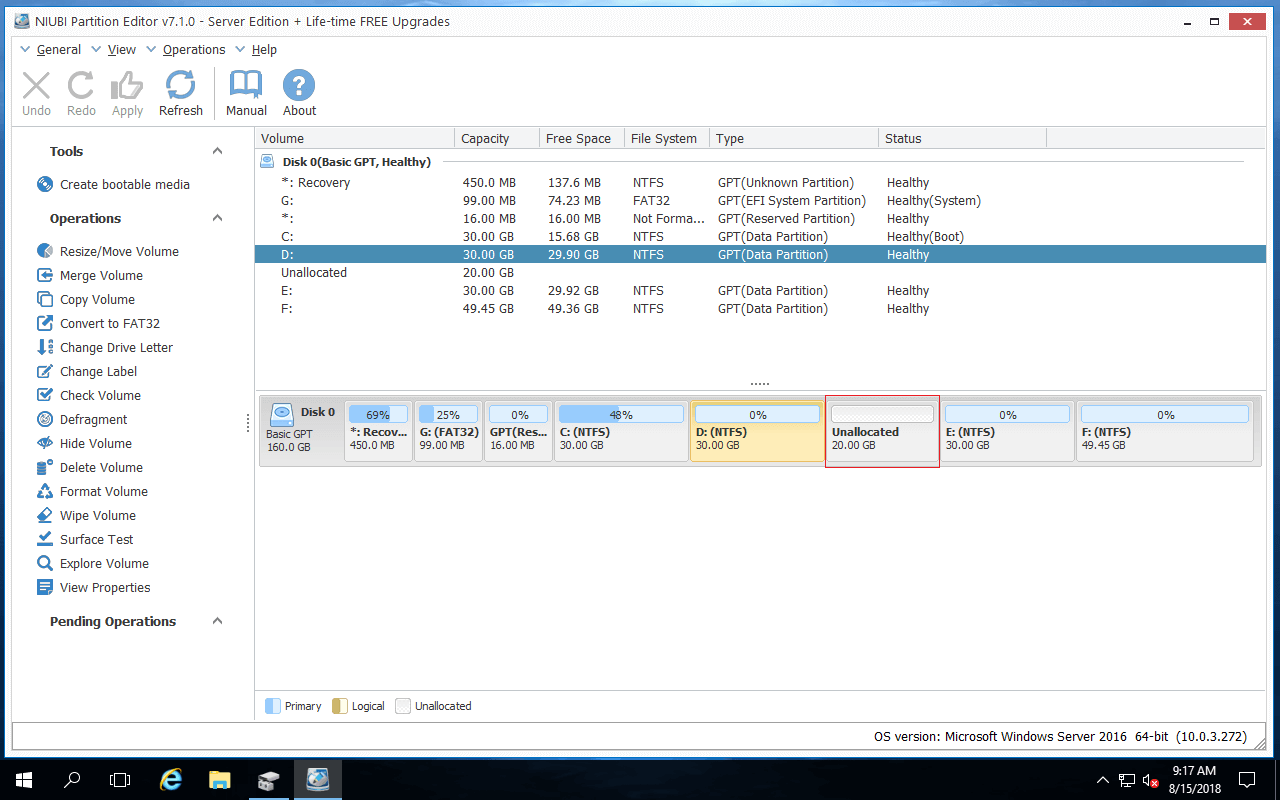
Unlike many other tools, NIUBI Partition Editor is much safer and faster. If it detects any error while moving unallocated space or performing other partition modifications, it is able to automatically revert the server to its original status instantly. Its Virtual Mode and Cancel-at-will technologies help you cancel pending and ongoing unwanted operations. Another major benefit is its advanced file-moving algorithm, making it 30% to 300% faster when shrinking and moving partitions. To move and merge unallocated space in Windows Server 2016, you simply need to click, drag, and drop on the disk map.
How to Move Unallocated Space to the Left in Server 2016
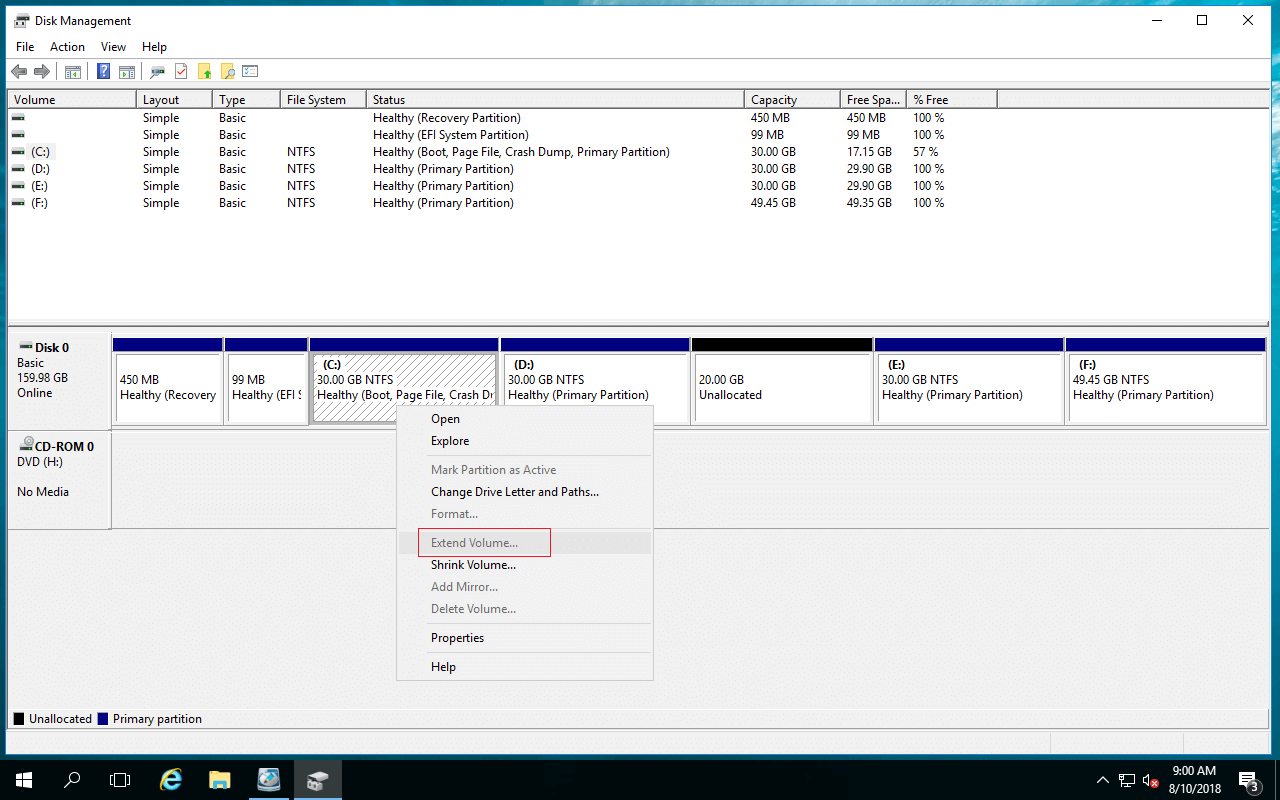
When the system C: drive is running out of space, many people try to extend it using the Disk Management tool. However, Extend Volume is disabled for the C drive after shrinking the D drive. This occurs because the unallocated space is non-adjacent to the C drive. In this situation, you need to move the unallocated space to the left (next to the C drive).
How to Move Unallocated Space to the Left in Windows Server 2016:
- After downloading and launching NIUBI Partition Editor, right-click drive D and select Resize/Move Volume.
![NIUBI Partition Editor]()
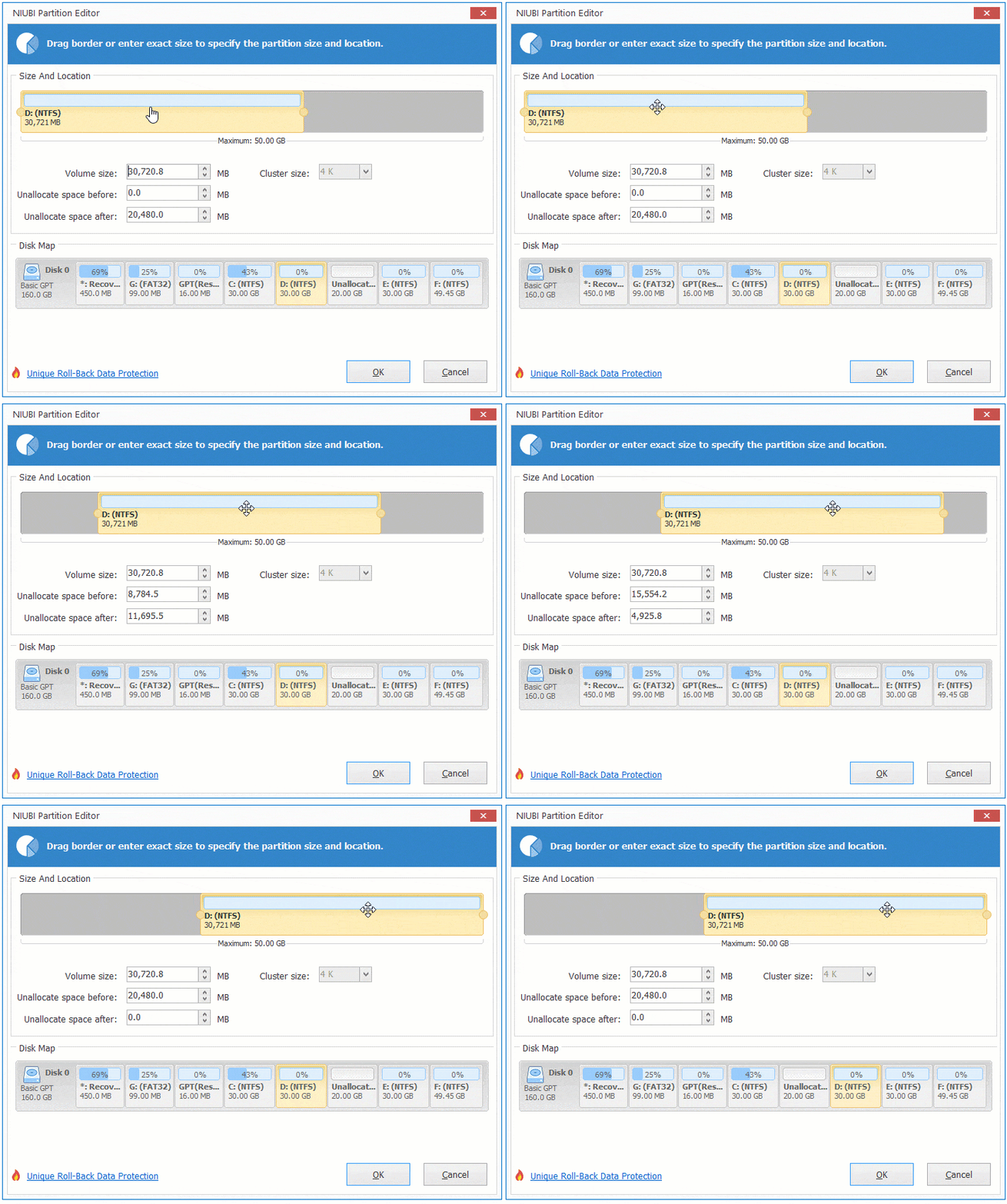
- Drag the middle of the D drive towards the right in the pop-up window; the unallocated space will then be moved to the left simultaneously.
![Move unallocated]()
- Click Apply on the top left to execute. (All operations before this step only work in virtual mode.)
![unallocated moved]()
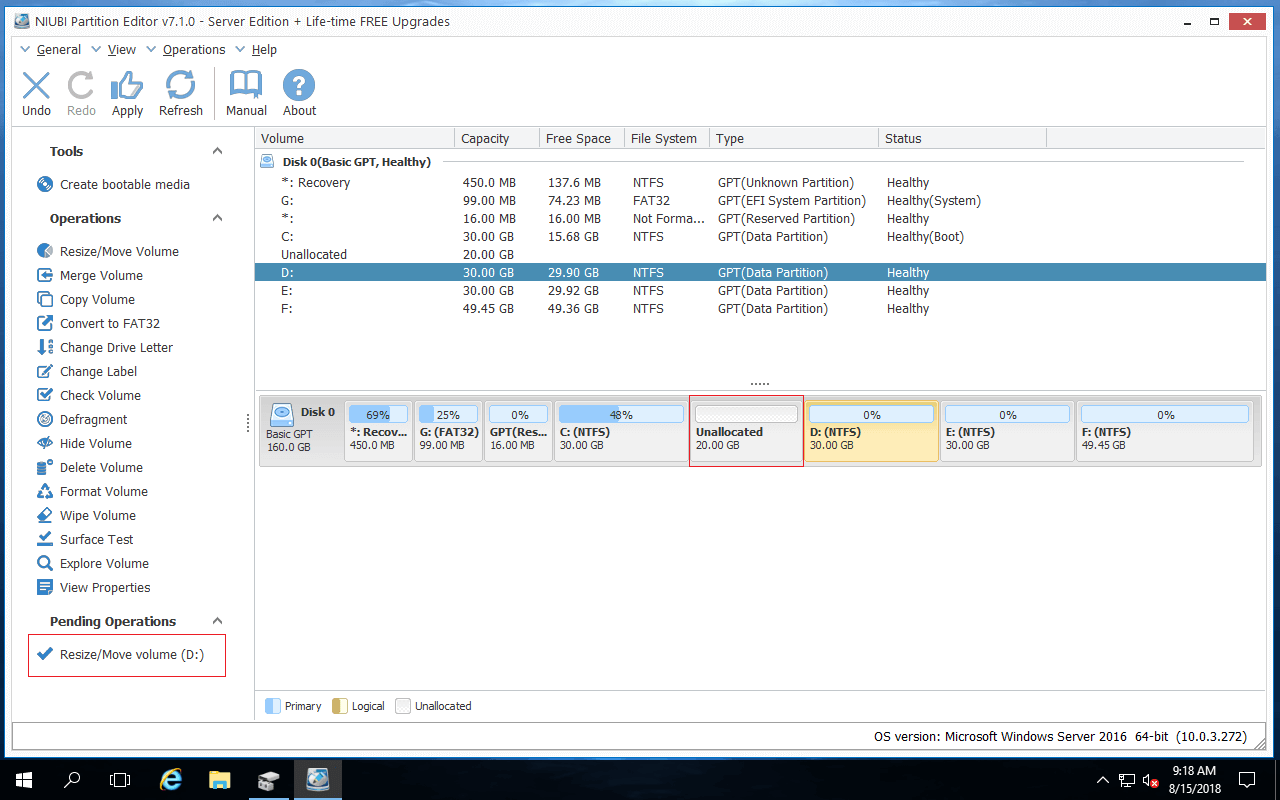
How to Merge Unallocated Space into the C Drive in Windows Server 2016
Right-click the C drive and select "Resize/Move Volume" again. Drag the right border towards the right in the pop-up window.
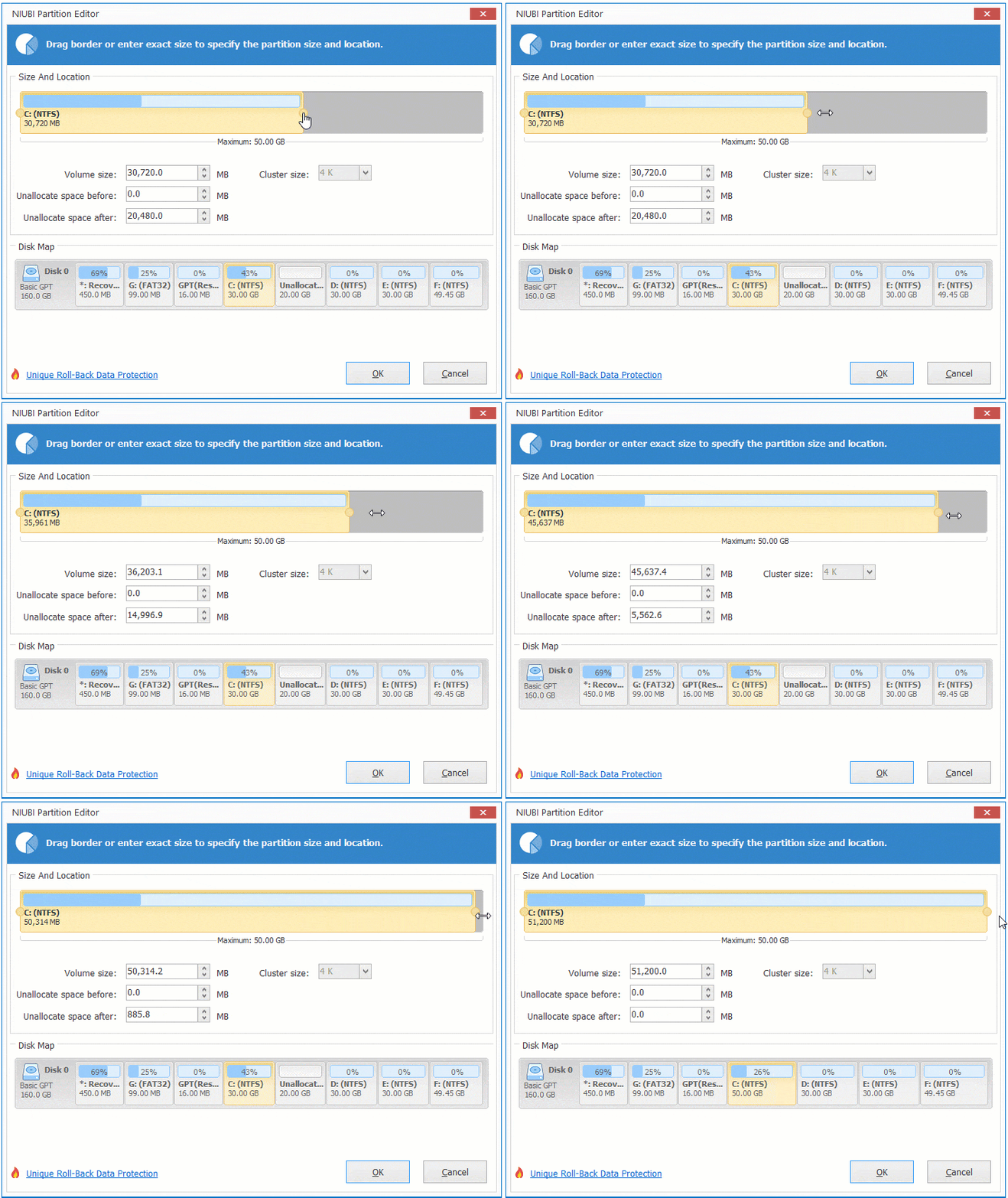
The unallocated space will then be combined into the C drive. Remember to click "Apply" to take effect.
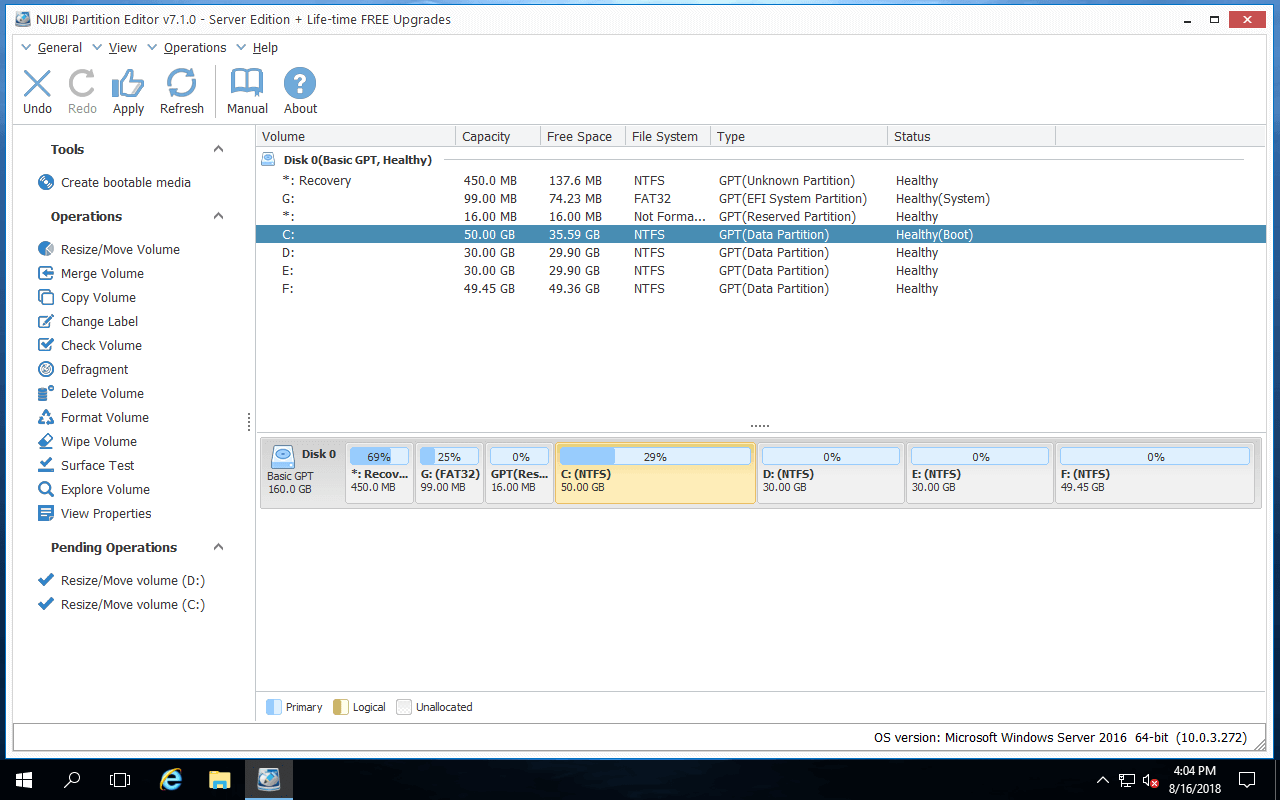
Watch the video below on how to move unallocated space in Windows Server 2016 and merge it into the C drive:

How to Add Unallocated Space to Other Volumes
After shrinking the D drive in Disk Management, the Extend Volume function is disabled for all other partitions. If you want to extend the right adjacent partition (drive E in this example), you can combine the unallocated space into it using NIUBI Partition Editor directly without moving it.
To do this, right-click E: and select "Resize/Move Volume". Drag the left border towards the left in the pop-up window.
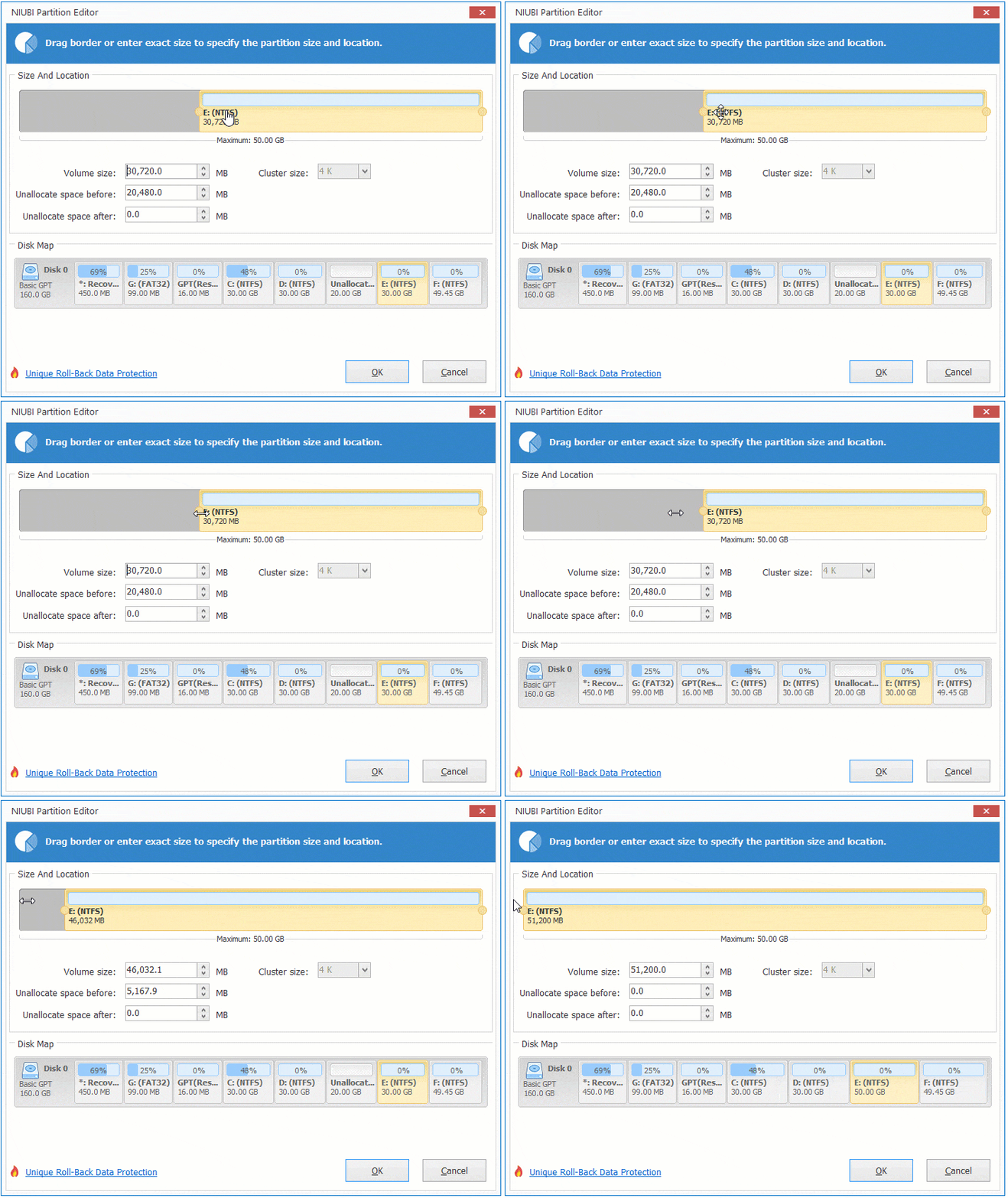
If there is another drive F located to the right of E, you must move the unallocated space to the right to expand drive F. To do this, right-click E: and select "Resize/Move Volume", then drag the middle of it towards the left in the pop-up window.
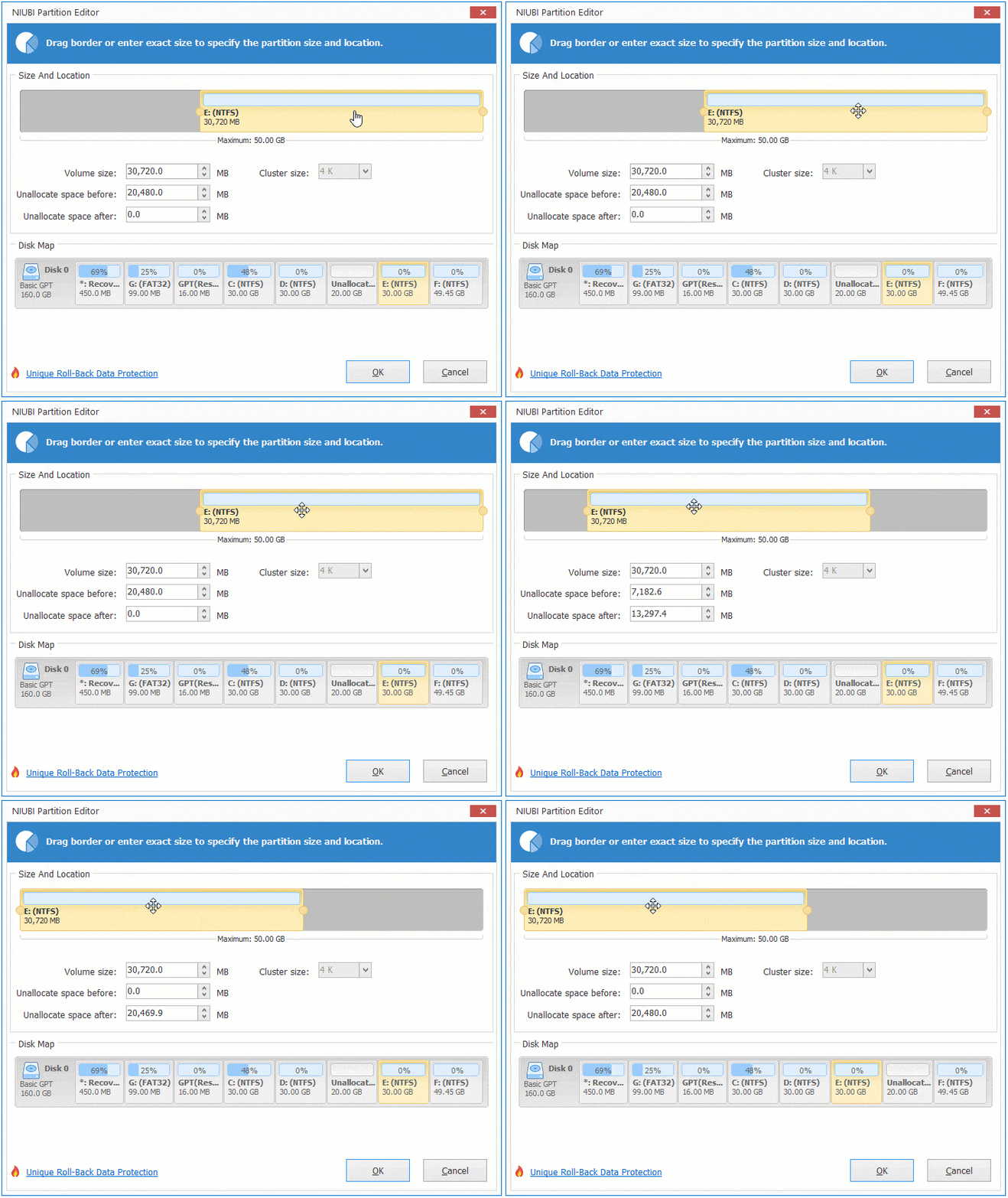
After that, run "Resize/Move Volume" again for drive F to combine the unallocated space. If desired, you can move unallocated space to the front or the end of a disk.
Move/Merge Unallocated Space to Another Disk
When a hard disk is full and no unallocated space can be generated, some people wonder if it is possible to expand a partition by moving unallocated space from another disk. The answer is no. For a physical hard disk, the size is fixed; a 500GB disk cannot be increased to 1TB. In this situation, you can clone the disk to a larger one and expand the partition(s) with the additional disk space.
If you run Windows Server 2016 as a virtual machine in VMware or Hyper-V, you can expand a virtual disk directly when it is full. After doing so, the additional disk space will be shown as unallocated at the end of the original virtual disk. You can then follow the methods above to move and combine the unallocated space into the partition(s) that you want to extend.
Besides moving and merging unallocated space in Windows Server 2016/2019/2022/2025 and older versions like Server 2003/2008/2012, NIUBI Partition Editor helps you perform many other disk partition management operations.
 © 2009 - NIUBI Technology All Rights Reserved. |