
A hard disk drive is an indispensable component of a server. Before saving files to a brand-new disk, you must initialize the disk, create partitions on it, and format the partitions with a file system. After using the server for some time, you may need to clone the disk to a larger one, convert the disk partition type, or resize and move partitions. To accomplish these tasks, a disk partition management tool is required. Like other versions of Windows Server, Windows Server 2025 includes Disk Management to perform some basic operations. However, if you need to clone disks, convert partition types, or move and resize partitions without restrictions, only reliable server disk management software can help you. This article explains the built-in Disk Management tool in Windows Server 2025 and introduces the best disk partition software for Windows servers.
How to Open Disk Management
There are two methods to open Disk Management on Windows Server 2025:
- Press the Windows + X keys simultaneously, and click "Disk Management" in the list.
- Press Windows key + R, type "diskmgmt.msc" and press "Enter" on the keyboard.
The Abilities of Disk Management
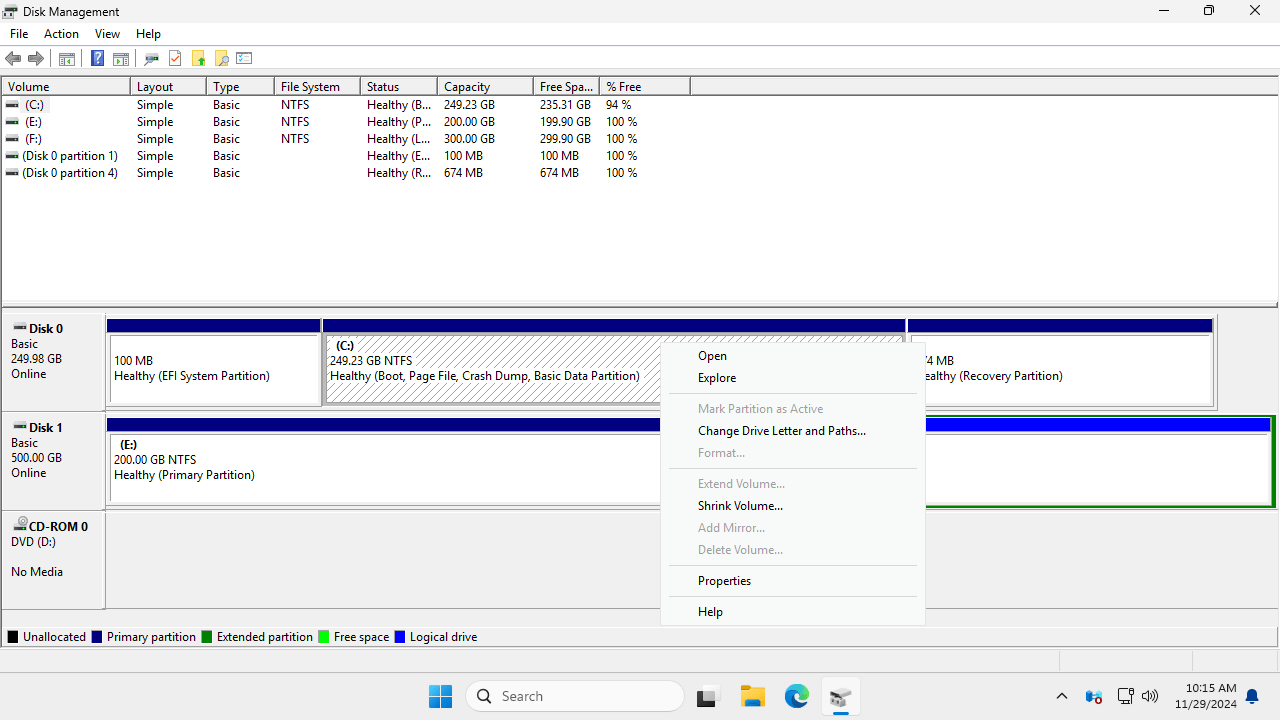
After right-clicking a partition or the leftmost disk header area, you'll see all available options. Unavailable operations will be grayed out.
For an initialized disk, the options include:
- New Simple, Spanned, Striped, Mirrored or RAID-5 Volume
- Convert to Dynamic Disk
- Convert to GPT disk
- Offline
- Properties
For an allocated partition, the options include:
Open the partition in File Explorer, Mark Partition as Active, Change Drive Letter and Paths, Format, Shrink Volume, Extend Volume, Delete Volume, and view Properties.
In addition to the basic abilities to create, delete, and format partitions, Windows Server 2025 Disk Management has some advanced features, although they have limitations.
Manage dynamic volumes:
Dynamic disk volumes consume a lot of server resources. Additionally, there's a significant risk of data loss if one disk fails, except for the mirrored volume. Hardware RAID arrays are a better choice.
Disk conversion:
Disk Management has the option to convert a disk between MBR and GPT, as well as between basic and dynamic.
However, it can only convert a basic disk to dynamic without losing data. To convert a dynamic disk to basic or to convert between MBR and GPT, you must delete all partitions on the disk beforehand.
Change partition size:
Like previous versions, Server 2025 Disk Management has the 'Shrink Volume' and 'Extend Volume' functions to help resize partitions without losing data in most cases.
However, it can only shrink NTFS partitions to the left and create unallocated space on the right. It can only extend an NTFS partition when there is adjacent unallocated space on the right.
Limitations of Disk Management
Among the advanced features, "Shrink Volume" and "Extend Volume" are more likely to be used. However, because Disk Management cannot change the start position of a volume, it causes many problems when resizing disk partitions.
Limitations of resizing partitions with Disk Management on Windows Server 2025:
- It can only shrink and extend NTFS partitions; FAT32 and other partition types are not supported.
- It can only shrink partitions to the left and create unallocated space on the right.
- It cannot shrink volumes beyond the point where unmovable files are located.
- It cannot extend a volume with non-adjacent unallocated space, or when the adjacent unallocated space is on its left.
In addition to these limitations, Disk Management lacks many features compared to disk partition software, such as: cloning disks/partitions, converting disk partition types without data loss, moving partitions, scanning for bad sectors, and more.
Best Server Disk Partition Manager
Compared to other disk management tools for Windows 2025 server, NIUBI Partition Editor is much safer and faster because of its powerful technologies:
- Virtual Mode: To prevent mistakes, all operations are listed as pending for preview. Real disk partitions are not changed until you click "Apply" to confirm.
- Cancel-at-will: If you apply incorrect operations, you can cancel ongoing tasks without worrying about partition damage.
- 1 Second Rollback: If any known error is detected while resizing partitions, the software can automatically revert the server to its original state in an instant.
- Hot Clone: Clone disk partitions without interrupting the server. You can clone the system disk before making changes or as part of a regular backup routine.
- Advanced File-Moving Algorithm: Resize and move partitions 30% to 300% faster, saving significant time, especially when handling a large number of files.
Download NIUBI Partition Editor, and you'll see all storage devices, along with their partition layouts and detailed information in the main window. Right-click a partition or the leftmost disk header area, and you'll see available operations.
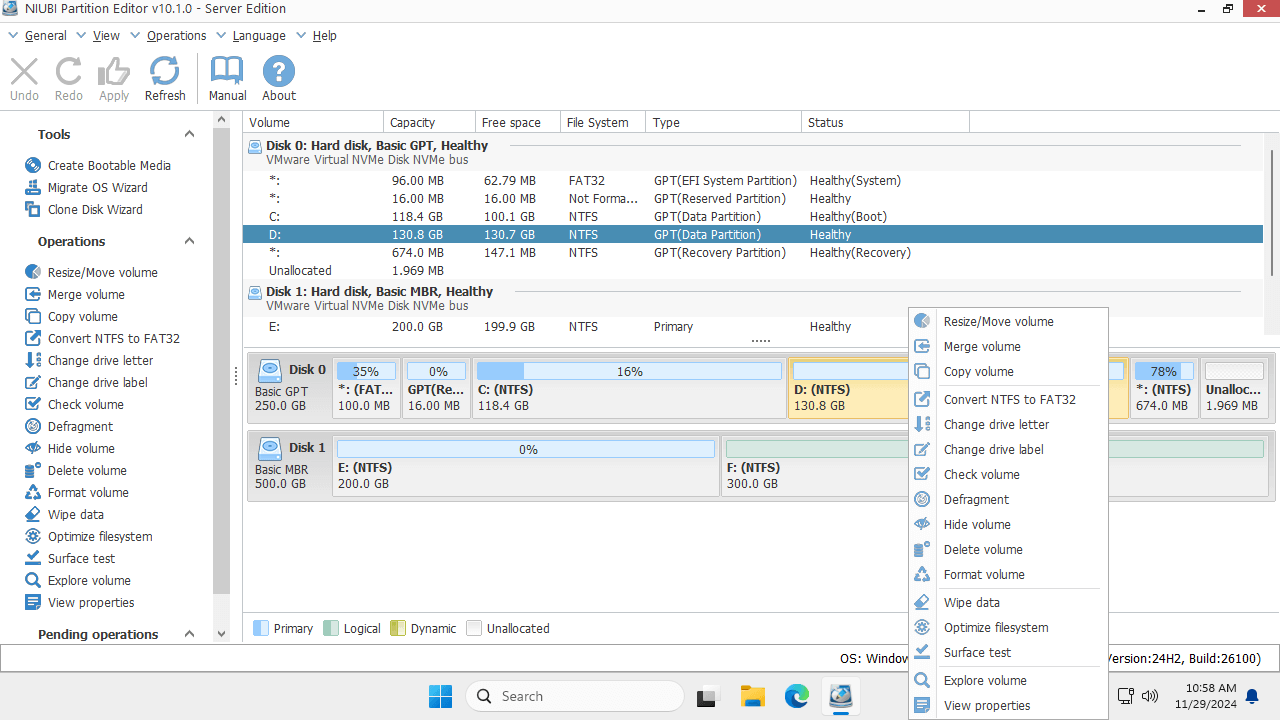
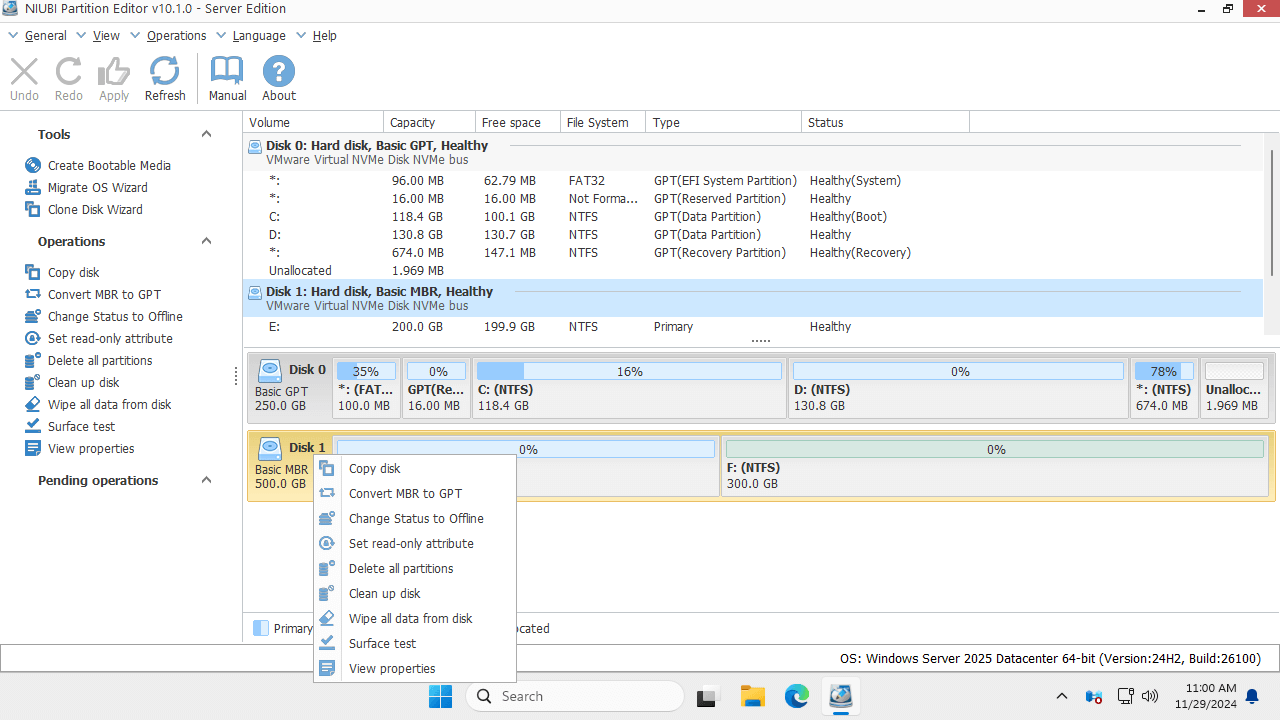
Learn how to manage disk partition for Server 2025 with this powerful tool.
 © 2009 - NIUBI Technology All Rights Reserved. |