
Many server administrators need to clone their disk partitions. Some users want to replace their current disks with larger ones, while others intend to migrate the operating system and programs to different hardware. There are many disk cloning software options available on the market today. Additionally, image backup and restoration can also be used for data protection and migration. So, should you choose an image backup or disk cloning? Furthermore, when selecting disk cloning software, which one is the most suitable? This article answers these questions and provides detailed instructions on how to clone Windows Server 2025 disk partitions.
Advantages of Cloning a Disk Over an Image Backup
Cloning a disk and performing an image backup are two distinct approaches to data protection. Compared to image backups, disk cloning offers several significant advantages:
- Immediate Bootable Disk
A cloned disk is an exact, bootable copy of your original disk. This means you can immediately swap it into your system and boot from it without needing to restore or reinstall anything. It is the ideal solution for quick recovery in the event of hardware failure. - Faster Recovery
Recovery using a cloned disk is nearly instantaneous. You simply replace the failed or outdated disk with the cloned one and resume operations without experiencing significant downtime. - Simpler Process
The disk cloning process is highly straightforward. Typically, you only need to connect the new disk, run a cloning tool, and let the software handle the rest. There is no need for complex configurations or additional software to restore an image file. - Data Integrity
Cloning creates an exact duplicate of the entire disk. It ensures that all files, system files, and hidden files are accurately copied over, including bootable partitions and core system configurations. - Seamless System Migration & No Reinstallation
When you clone a disk, the new disk serves as an exact replica of the original. All operating systems, applications, and settings are transferred seamlessly, making it immediately usable as a "plug-and-play" solution without requiring any reconfiguration or reinstallation. - Works Well for Disk Upgrades
If you are upgrading to a larger or faster disk (e.g., migrating from an HDD to an SSD), cloning is the most efficient method available. It allows you to transfer everything to the new disk and continue working without any disruption.
Benefits of Cloning Disks with NIUBI Partition Editor
1. Much Faster Execution
This tool clones disk partitions at the filesystem level, making the process significantly faster than a traditional sector-by-sector clone. Furthermore, its advanced file-moving algorithm enables it to clone disk partitions 30% to 300% faster than similar alternative software.
2. Flexible Target Disk Sizes
When cloning disks in Windows Server 2025 and other versions using NIUBI Partition Editor, the target disk's capacity must be larger than the total used space of the original source disk. This means the target disk can be equal to, larger than, or even smaller than the source disk, as long as it has enough space to hold the actual data.
3. Resize Partitions During Disk Cloning
In most scenarios, the sizes of the source and target disks differ. NIUBI Partition Editor permits you to resize your partitions directly during the cloning process. This flexibility provides unparalleled convenience. Additionally, it enables you to expand the C: drive alongside other partitions, which is especially useful when the original disk is nearly full.
4. Comprehensive Disk Partition Management Features
Disk cloning is merely one feature offered by NIUBI Partition Editor. As a robust, all-in-one disk management toolkit, it allows you to shrink, extend, move, and merge partitions securely without losing data. You can also utilize it to convert disk partition types, create, delete, format, wipe, and optimize partitions, among a wide array of other features.
How to Clone a Windows Server 2025 Disk
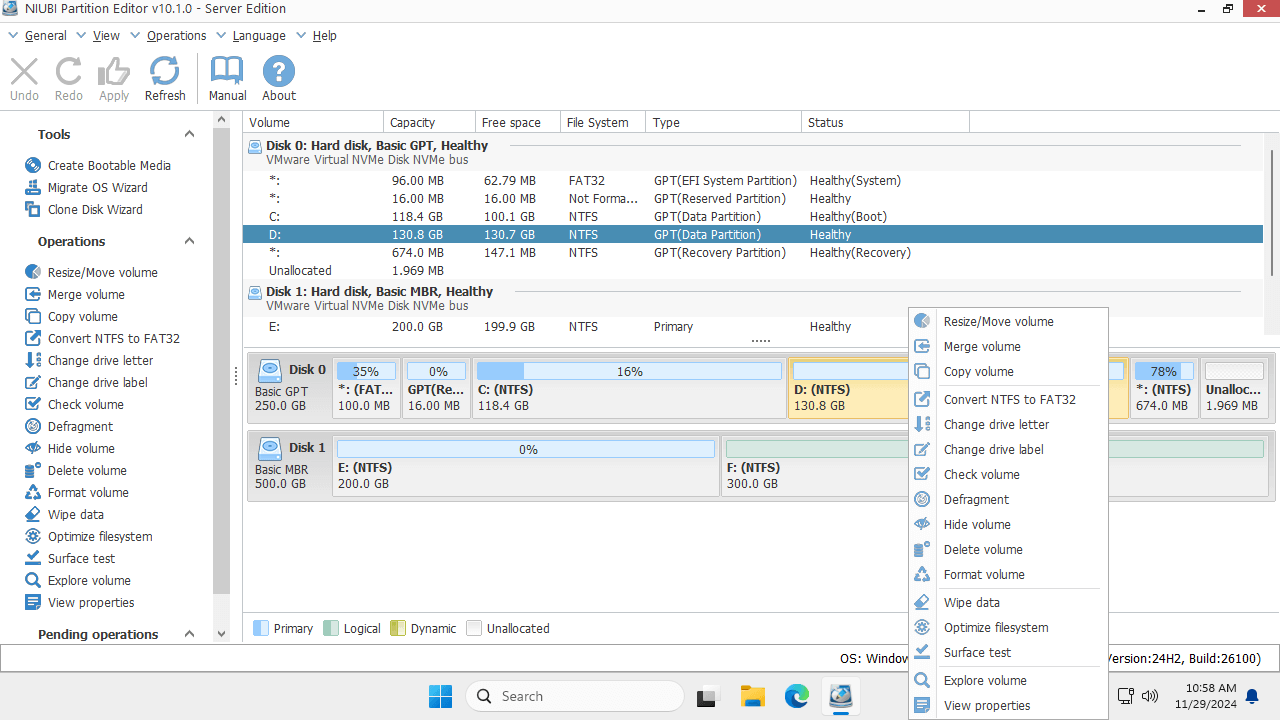
Download NIUBI Partition Editor. Upon launching, you will see all storage devices alongside their partition layouts and detailed information within the main interface window. Right-click a partition or the leftmost disk header area (where Disk 0/1 is labeled) to view the list of available operational options.
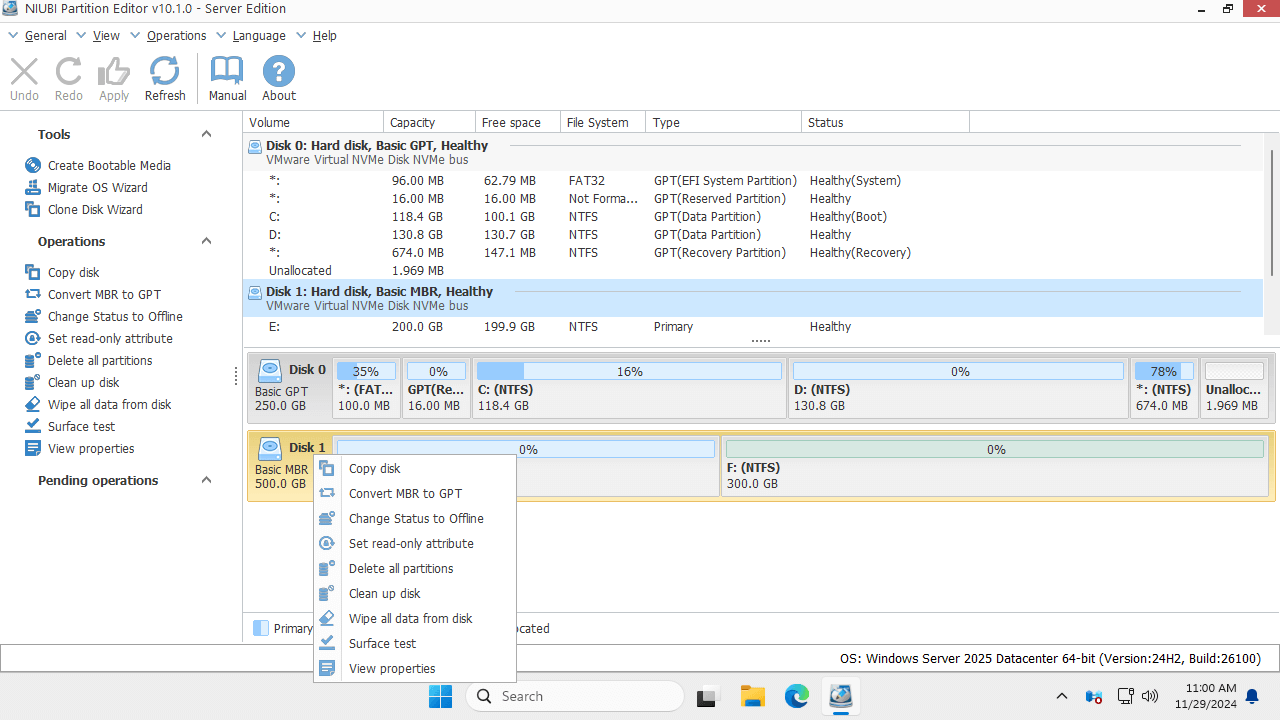
Steps to clone a disk in Windows Server 2025/2022 and other versions:
- Right-click the leftmost disk header area of the source disk and select "Clone Disk", or click the "Clone Disk Wizard" option located on the top left.
- Select your target disk in the pop-up window. If there are existing partitions on the target disk, you will be prompted to choose whether to delete these partitions. You must select the option to delete them to proceed with the cloning process.
- Edit the size and location of the partitions on the target disk, beginning with the last one. To resize a partition, simply drag either border to shrink or extend it. To move a partition, drag its center area and position it accordingly alongside the adjacent unallocated space.
- Click Next, and then confirm in the following window. Finally, click "Apply" on the top left to execute the operations.
Watch the video to learn how to clone Windows Server 2025 to an SSD/HDD or RAID array:
Beyond cloning disk partitions in Windows Server 2025/2022/2019/2016/2012/2008, NIUBI Partition Editor offers a vast range of additional disk partition management tools. These operations include shrinking, extending, moving, converting, defragmenting, hiding, wiping, and scanning for bad sectors.
 © 2009 - NIUBI Technology All Rights Reserved. |