
As with previous versions, Windows Server 2019 features a native Disk Management tool to help administrators manage disk partitions. However, it only performs basic operations and lacks advanced disk management capabilities. This article explains what Windows Server 2019 Disk Management can do, its limitations, and how it compares with professional server partition software.
1. What Does Windows Server 2019 Disk Management Do
There are 3 common ways to open Disk Management in Windows Server 2019:
- Right-click the Windows icon on the bottom left and click Disk Management in the list.
- Press Windows and X together on your keyboard, then you'll see Disk Management in the list.
- Press Windows + R to open Run, type diskmgmt.msc and press Enter.
Right-click a partition or the leftmost area of a disk to see available options. Unavailable options are grayed out, meaning that the disk or partition type of the current configuration does not meet the requirements of this function.
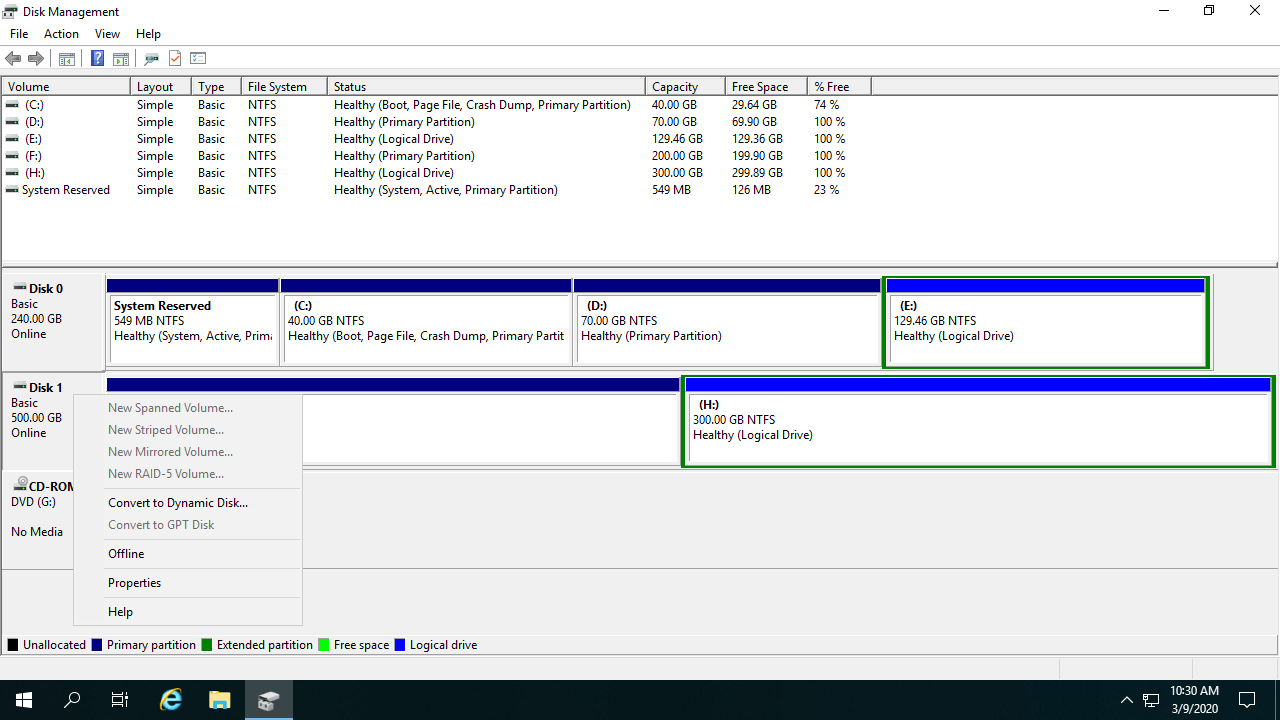
For an initialized disk, the options include:
- New Spanned Volume
- New Striped Volume
- New Mirrored Volume
- New RAID-5 Volume
- Convert to Dynamic Disk
- Convert to GPT disk
- Offline
- Properties
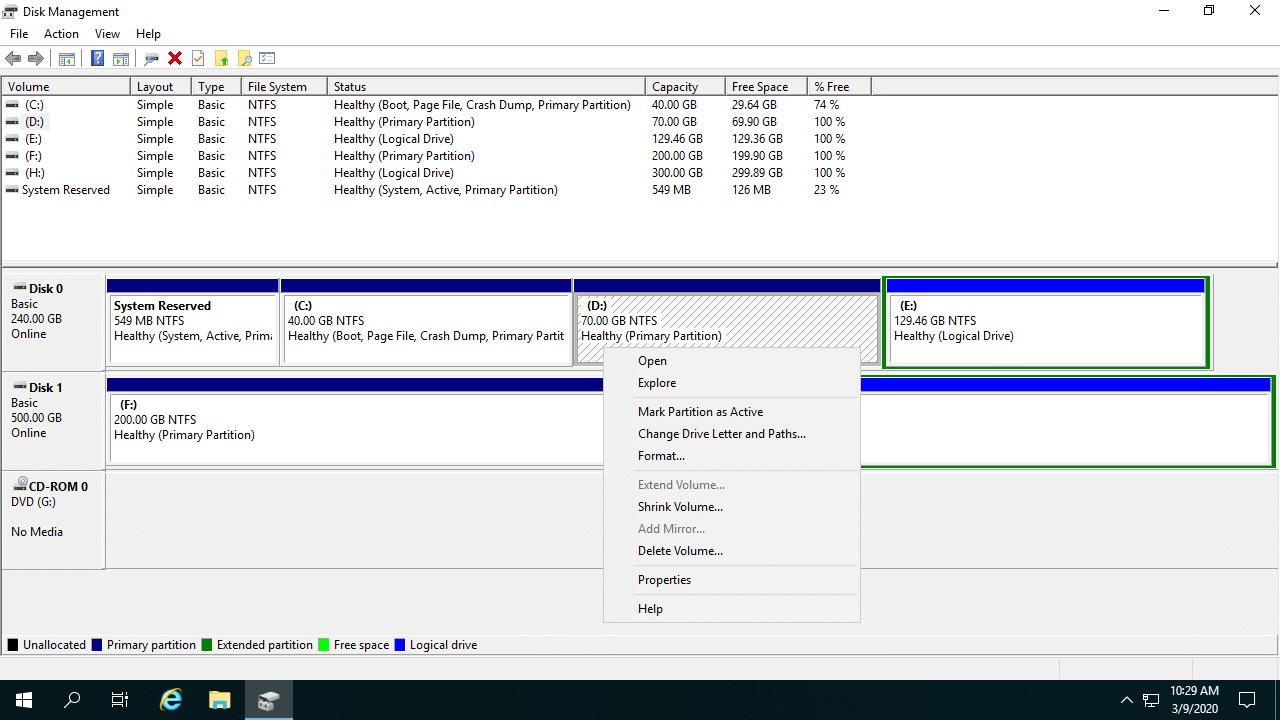
For an allocated partition, the options include:
- Open root directory in File Explorer
- Mark partition as Active
- Change drive letter and paths
- Format
- Extend Volume
- Shrink Volume
- Add Mirror
- Delete partition
- Properties
Besides the basic ability to create, delete, and format partitions, Windows Server 2019 Disk Management has some advanced capabilities.
Manage dynamic volumes:
Server 2019 Disk Management is able to create and manage Simple, Mirrored, Striped, Spanned and RAID 5 dynamic volumes.
However, dynamic disks consume more server resources and complicate disk management. Since hardware RAID controllers are standard and much cheaper now, it is highly recommended to use hardware RAID arrays instead of Windows dynamic volumes.
Disk conversion:
Disk Management has the option to convert a disk between MBR and GPT, and convert a disk between Basic and Dynamic.
However, it can only convert a Basic disk to Dynamic without losing data. To convert a Dynamic disk to Basic or convert between MBR and GPT, you must delete all partitions on the disk.
Change partition size:
Windows Server 2019 Disk Management has Shrink Volume and Extend Volume functions to help resize allocated partitions without losing data (in most cases).
But because of certain restrictions, Disk Management cannot extend a partition by shrinking another one. In addition, only NTFS partitions can be resized.
2. How to Resize Partition with Server 2019 Disk Management
To shrink partition in Server 2019 Disk Management:
- Right-click a NTFS partition in Disk Management and select Shrink Volume.
- Enter an amount of space and click Shrink. (If you do not enter an amount, the maximum available space is used.)
Disadvantages of "Shrink Volume" function:
- Unallocated space can only be generated on the right side when shrinking a partition.
- It can only shrink a little space if there are unmovable files located in this partition.
To extend partition in Server 2019 Disk Management:
- Right-click the right contiguous partition (D:) and select Delete Volume.
- Right-click the partition that you want to expand (C:) and select Extend Volume.
- Simply click Next until Finish in the pop-up Extend Volume Wizard window.
Disadvantages of "Extend Volume" function:
- There must be adjacent Unallocated space on the right side of the partition that you want to extend; otherwise, the Extend option is disabled.
- If the contiguous partition (D:) is a Logical drive, you still cannot extend C drive even after deleting D.
Therefore, third-party partition software is a much better choice to resize partitions in Windows Server 2019.
3. Comparison with Server Disk Partition Manager
Compared to the native Disk Management tool, third-party partition software is much more powerful and flexible. However, you should always back up the server and use safe software, because unreliable tools can cause system boot failure or data loss. NIUBI Partition Editor provides unique data protection technologies and faster processing speeds:
- Virtual Mode – All operations are listed as pending for preview. Real disk partitions won't be modified until you click "Apply" to confirm.
- Cancel-at-will – You can cancel ongoing operations safely at any progress without losing data or damaging partitions.
- 1-Second Rollback – If any known error is detected while modifying partitions, it automatically reverts the server to its original status instantly.
- Hot Clone – Clone the system disk or data partition without interrupting the server. You can boot from the cloned disk immediately if the primary disk fails.
- Advanced file-moving algorithm – 30% to 300% faster when shrinking, moving, or cloning partitions.
Download NIUBI Partition Editor, and you will see the main window with your disk partition structure. Available operations for the selected disk or partition are listed on the left and by right-clicking. Unavailable operations are hidden automatically to keep the interface clean.
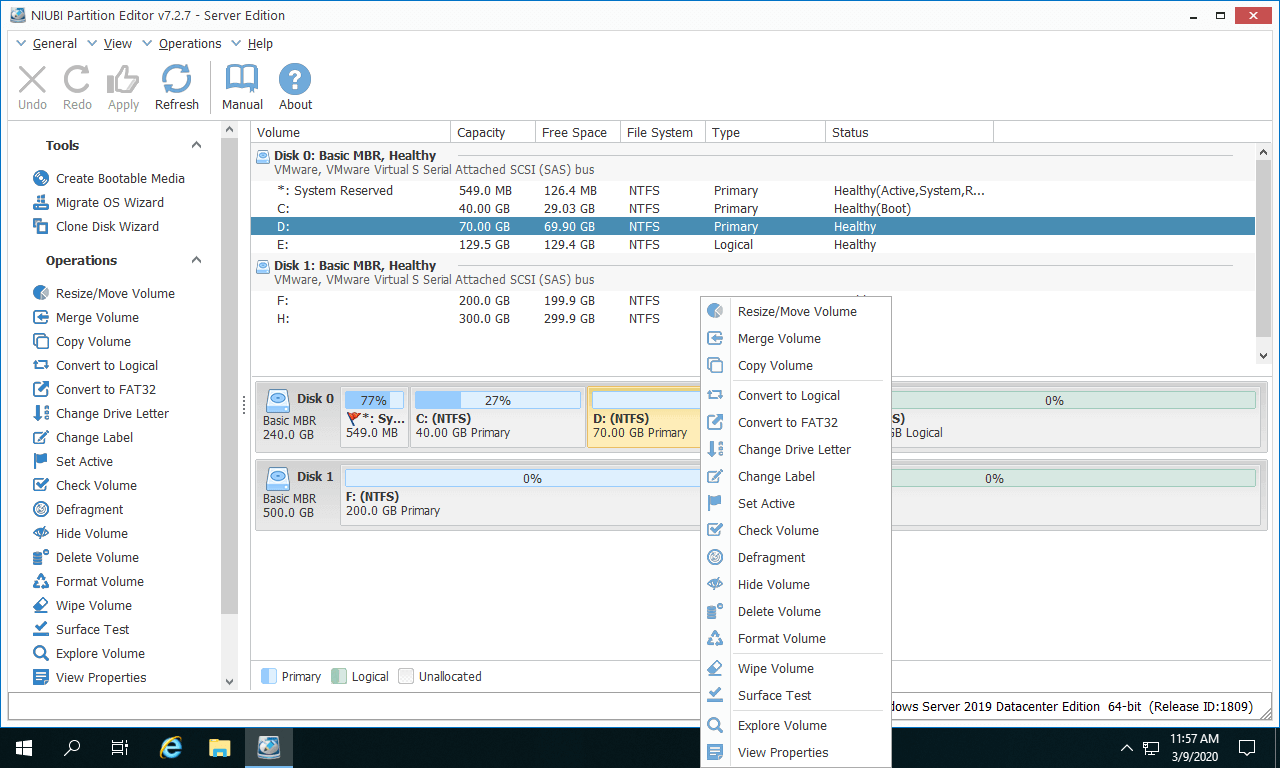
Available operations for a partition:
- Resize volume (shrink and extend)
- Move partition location
- Merge two adjacent volumes by 1 step
- Copy volume to Unallocated space
- Convert partition between Logical and Primary
- Convert NTFS to FAT32
- Optimize file system
- Change drive letter (such as D:)
- Change label (add or modify name of partition)
- Set as Active
- Check file system integrity
- Defrag to improve performance
- Hide from File Explorer
- Delete (files can be recovered)
- Format volume to use as new
- Wipe (erase data permanently)
- Surface test (scan bad sectors)
- Explore (view files/folders within directory)
- View properties
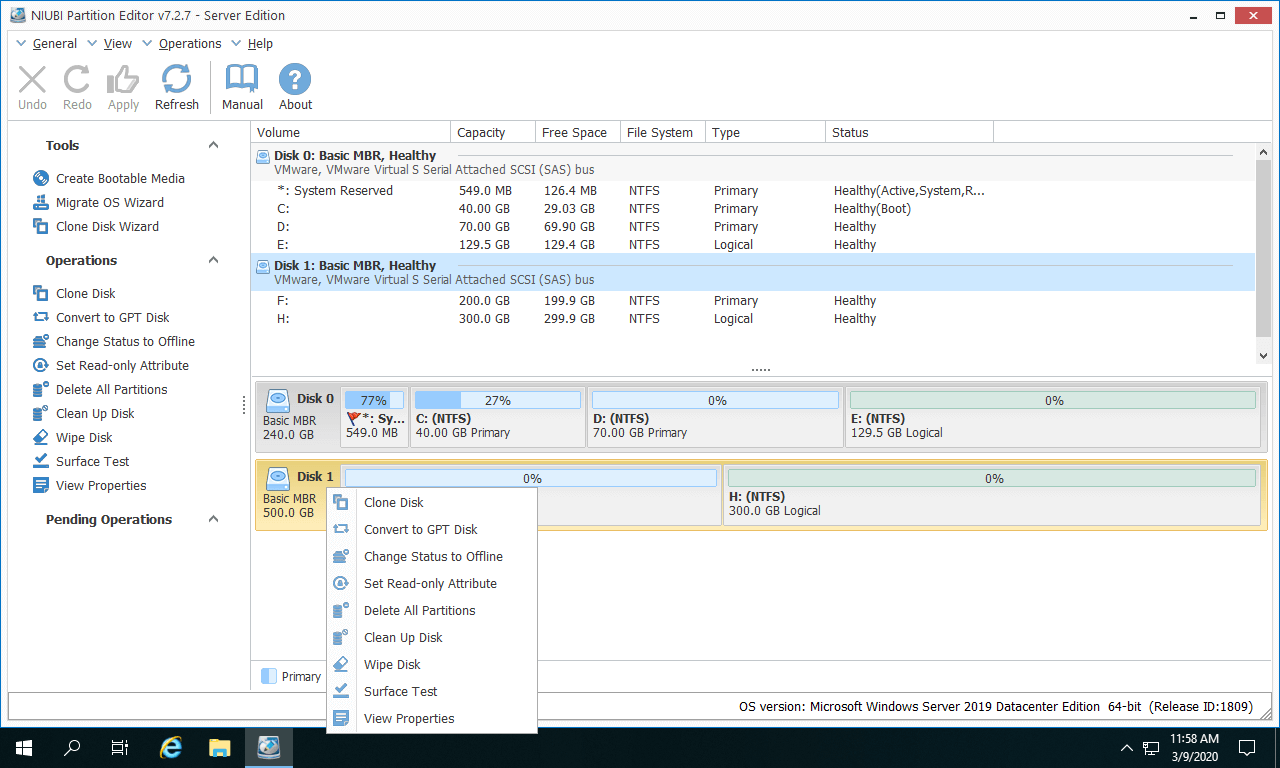
Available operations for a disk:
- Initialize brand new disk
- Change status to offline or online
- Set read-only attribute
- Wipe disk (cannot be recovered)
- Surface test
- View properties
- Clone disk to migrate data and OS
- Convert MBR disk to GPT
- Delete all partitions
- Cleanup disk
Learn how to manage disk partition for Server 2019 with this powerful tool.
 © 2009 - NIUBI Technology All Rights Reserved. |