
When the system partition runs out of free space, server manufacturers often recommend backing up data, deleting volumes, and restoring everything. This traditional reconfiguration process is incredibly tedious and time-consuming for system administrators. Fortunately, you can safely modify volume boundaries without experiencing data loss or reinstalling the operating system. If you can delete the adjacent primary partition to gain unallocated space, native utilities can extend the drive directly. Otherwise, executing specialized storage applications remains the most efficient way to manage capacity configuration goals. This article explains how to increase C drive space in Windows Server 2019/2022 without losing data.
Which tool to increase C drive space in Windows Server 2019/2022
As with previous versions, Windows Server 2019/2022 includes the native Disk Management snap-in to change partition sizes. However, this built-in tool has several operational constraints that prevent it from completing advanced storage layout reallocations. While you can easily shrink a volume to generate unallocated space, you cannot merge that space into alternate drive selections. This limitation causes the volume extension process to fail on non-contiguous boundaries.
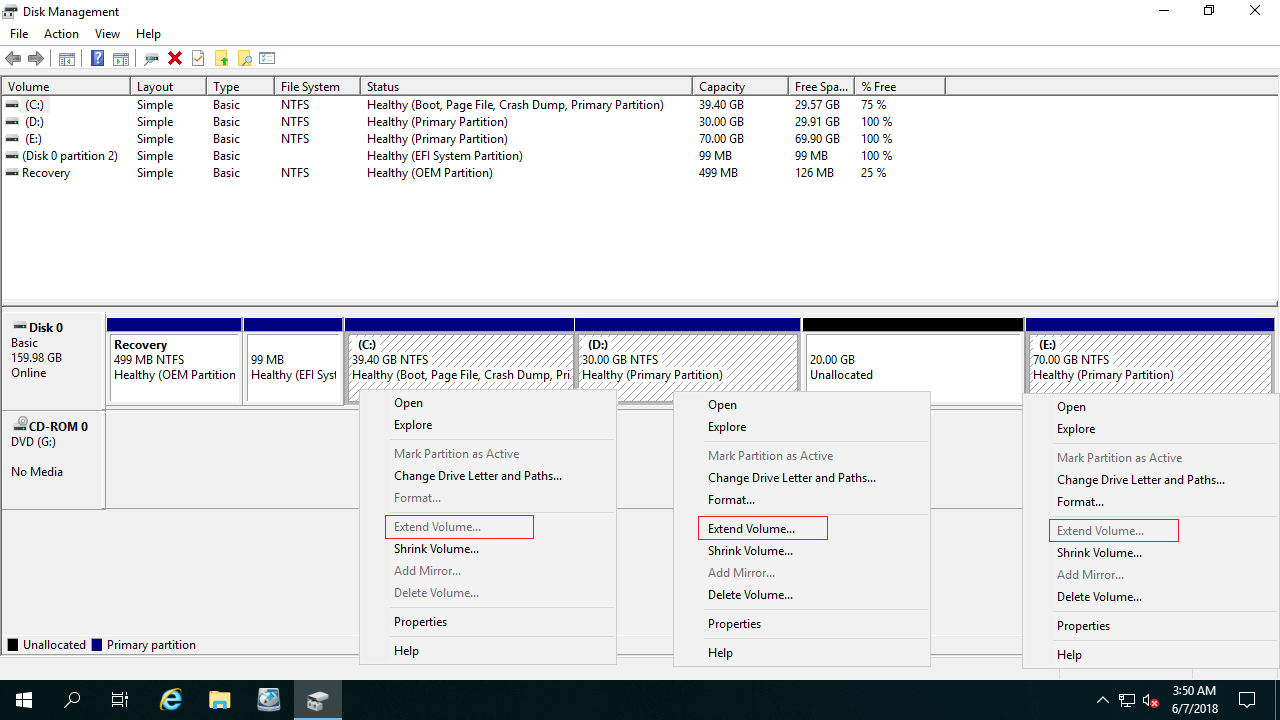
As shown in the system management layout, shrinking the D drive produces 20 GB of unallocated space. However, because this newly created space is non-contiguous, the Extend Volume option becomes grayed out and unavailable for both the C and E drives.
The native shrink function can only generate unallocated sectors on the strict right boundary of the target volume. Meanwhile, the extend function requires unallocated capacity to sit directly adjacent to the right edge of the target partition. Because the unallocated block is separated from the system partition by drive D, native utilities cannot combine them directly, rendering the Extend Volume option disabled.
To update volume parameters without software, you must completely delete the adjacent data partition to generate a contiguous unallocated block. Additionally, this right-side contiguous partition must be configured as a primary volume. If it is formatted as a logical drive instead, native tools cannot extend C drive even after its deletion.
Steps to increase C drive space in Windows Server 2019/2022 without software:
- Migrate all files stored on the contiguous partition D to an alternative secure storage drive.
- Right-click this adjacent partition inside Disk Management and select the "Delete Volume" option.
- Right-click the C drive, select "Extend Volume," and click Next through the sequential wizard prompts until you hit Finish.
If you prefer to preserve your existing data partitions, or if drive D is a logical volume, using third-party utilities is necessary. To secure your configuration environment, server partition software like NIUBI Partition Editor integrates Virtual Mode, Cancel-at-will, 1-Second Rollback, and Hot-Clone technologies to protect vital operating data.
There are 3 main operational paths to expand your primary server partition, depending on your current system disk topology.
Method 1 - Increase C drive free space from D (adjacent volume)
On most production servers, the contiguous partition D contains significant unused capacity. You can safely shrink this volume to reclaim free space on its left boundary and merge it directly into the system drive. This advanced reallocating strategy ensures that the operating system, installed applications, and server configurations remain fully intact.
Steps to increase C drive free space from D on Windows Server 2019/2022:
- Download NIUBI Partition Editor, right-click the contiguous drive D:, and select the "Resize/Move Volume" option. In the interactive panel, drag the left border toward the right side to create an unallocated block on its left edge.
- Right-click the system C: drive, launch "Resize/Move Volume" again, and drag its right boundary rightward to absorb the newly generated space.
- Click the "Apply" icon positioned in the upper-left area of the main panel to execute the pending operations.
Watch the video how to do this:
- In some configurations, the contiguous data drive is mapped as E; simply substitute D with E in the operational steps above.
- The utility operates within Virtual Mode initially; real partition sectors remain unchanged until you click Apply to commit the adjustments. If an error occurs, select Undo.
- If your local server utilizes hardware RAID arrays (such as RAID 1, 5, or 10), do not break the active array configuration or modify controller properties; simply apply the standard steps outlined above.
Method 2 - Increase C drive free space with E (nonadjacent volume)
When the adjacent drive D lacks sufficient capacity, you can harvest unallocated sectors from non-adjacent volumes residing on the same disk.
Steps to increase C drive disk space from nonadjacent volume E on Server 2019/2022:
- Right-click the non-adjacent drive E:, select "Resize/Move Volume," and drag its left border rightward to generate an unallocated block on its left side.
- Right-click drive D:, launch "Resize/Move Volume" again, place your cursor in the middle of the partition block, and shift it toward the right side. This action moves the unallocated space over to the left edge of drive D.
- Right-click the system C: drive, choose "Resize/Move Volume," and drag its right boundary rightward to absorb the newly shifted unallocated sectors.
- Click Apply to authorize and execute the queued operations safely.
Method 3 - Increase C drive space with a larger disk
In some instances, the system hard drive contains no other volumes or has completely run out of available sector blocks. Under these fully saturated layout scenarios, software utilities cannot harvest free space from an independent, separate physical disk. For local physical systems, you can clone the disk to a larger drive container and expand the system partition using the newly provisioned block space. Follow the detailed steps demonstrated in the technical video tutorial below:
If the entire virtual disk is full, expanding its capacity via VMware or Hyper-V tools is even simpler than physical disk cloning. Once expanded, you can easily move and merge the newly generated unallocated space into the C drive following the methods introduced above.
Beyond shrinking, moving, extending, and cloning disk partitions across current server families, NIUBI Partition Editor streamlines low-level storage optimization tasks through a secure, high-performance administrative toolkit.
 © 2009 - NIUBI Technology All Rights Reserved. |