
Many server administrators want to extend partitions after running their servers for a while. A typical example is when the system C drive runs out of space. Windows native Disk Management cannot extend a partition by shrinking another one. Therefore, reliable disk partition software is required. But how should you select the right tool? Server disk partition configurations vary. Some servers use physical hard drives, some use RAID arrays, and others run within VMware or Hyper-V environments. This article introduces a full solution to extend partitions on Windows Server 2016 without losing data.
How to Extend a Partition on the Same Disk
For any server, system and data safety are of the utmost importance. However, there is a potential risk of system or partition damage while resizing allocated partitions. Therefore, it is essential to back up your data first and use safe partitioning software.
Compared to other tools, NIUBI Partition Editor features powerful data protection technologies to help you extend partitions on Windows servers safely.
- Virtual Mode - all operations will be listed as pending for preview, and real disk partitions won't be changed until you click "Apply" to confirm.
- Cancel-at-will - if you apply an incorrect operation, you can cancel the ongoing operations at any time without causing data damage.
- 1-Second Rollback - if any known error is detected while resizing partitions, it automatically reverts the server to its original status instantly.
- Hot Clone - clones disk partitions in Windows without interrupting the server. You can clone the system disk before any operation or as a regular backup. If the system disk encounters an error, you can boot from the cloned disk immediately.
It is also 30% to 300% faster due to its advanced file-moving algorithm.
When there is unused free space in any partition, you can shrink it to expand another volume on the same hard disk. You simply need to click, drag, and drop on the disk map in NIUBI Partition Editor.
Download NIUBI Partition Editor Server, and you will see all disks with a graphical partition structure on the right side. Available operations for the selected disk or partition are listed on the left and can also be accessed by right-clicking.
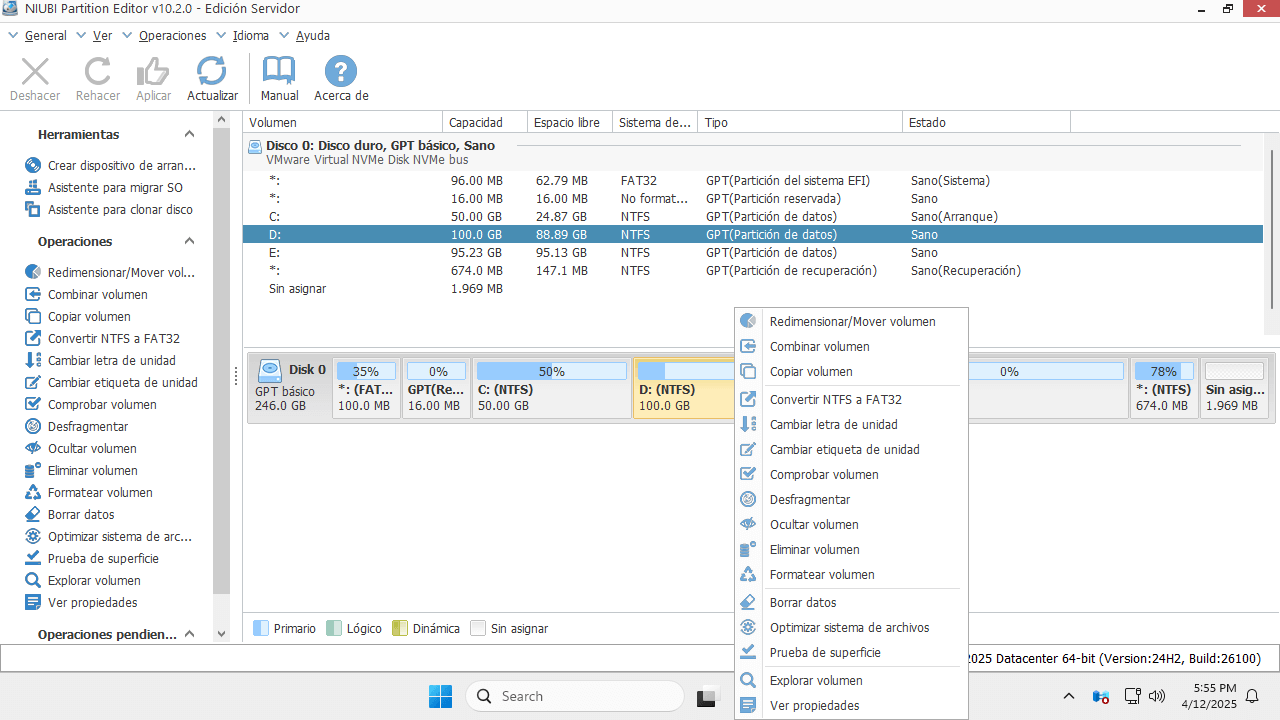
How to extend the C drive in Windows Server 2016 by shrinking other volumes:
- Right-click drive D and select "Resize/Move Volume". Drag the left border to the right in the pop-up window to shrink drive D, creating unallocated space on its left side.
- Right-click the C: drive and select "Resize/Move Volume" again. Drag the right border to the right to combine this unallocated space.
- Click Apply on the top left to execute the operations.
If there is not enough free space in the contiguous partition D, you can shrink any nonadjacent volume on the same disk. However, before adding the unallocated space to the C drive, you must perform an additional step to move the partition.
Watch the video to see how to do this:

The steps are similar if you want to expand the D drive or extend the System Reserved partition in Windows Server 2016.
How to Extend a Partition Using Another Disk
If there is no available free space on a disk, no software can extend a partition by adding or moving unallocated space from a separate physical disk. In this case, you have two options to extend a partition in Windows Server 2016/2019/2022:
- Clone the disk to a larger one and extend the partition with the extra disk space.
- Move a partition to another disk, then delete that partition to extend the C drive or another volume.
How to Clone a Disk and Extend Partitions:
How to Move and Extend a Partition:
How to Extend a RAID 0/1/5/10 Partition
Both the operating system and NIUBI Partition Editor treat physical hard disks and hardware RAID arrays exactly the same.
When extending a RAID partition on Windows Server 2016/2019/2022, the brand, chipset of the RAID controller, or array configuration do not matter. Simply check the disk partition structure using Windows Disk Management or NIUBI Partition Editor.
- If there is free space available on the same RAID array (recognized as Disk 0, Disk 1, etc., by Disk Management or NIUBI), you can shrink one partition to extend another.
- If there is no free space available on the RAID array, check whether your RAID controller allows you to add or replace disks and rebuild the RAID without losing data. If it does, the process is much easier. Otherwise, you will need to copy the original RAID array to a larger physical disk or another RAID array.
How to Extend a Virtual Partition in VMware/Hyper-V
If you run Windows Server 2016 as a virtual machine in VMware or Hyper-V, check whether there is available free space on the same virtual disk. If so, simply install NIUBI Partition Editor on the virtual server and follow the steps shown in the video above.
If there is no free space left on the virtual disk, you can expand the virtual disk size directly through VMware or Hyper-V settings without copying it to another disk.
After expanding the virtual disk, the additional space will be displayed as unallocated space at the end of the original disk. You can then move and combine the unallocated space into the partitions you want to extend.
In Summary
Before extending any partitions in Windows Server 2016 or other versions, always back up your data and use safe partition software. Whether you need to extend a partition on a physical hard disk, a hardware RAID array, or a VMware/Hyper-V virtual machine, first check if there is free space in any other partition on the same disk. If free space is available, shrink that partition to generate unallocated space. If there is no free space left on the disk, follow the corresponding methods described above. In addition to shrinking and extending partitions for Windows servers, NIUBI Partition Editor helps you perform various other disk and partition management tasks.
 © 2009 - NIUBI Technology All Rights Reserved. |