
Sometimes, you need to merge two partitions in Windows Server 2016. For example, when the C drive is running out of space, merging the C and D drives transfers the free space from D into the C drive. On some servers, too many partitions are created on a single disk, which causes difficulties in identifying specific partitions and locating files. This article explains how to merge partitions in Windows Server 2016 using native tools and safe partition software. If you want to extend a partition in Server 2016, it is generally better to shrink another volume to gain unallocated space instead of merging them together.
1. Merge Partitions in Server 2016 via Disk Management
Windows Server 2016 does not have a "Merge Volume" function in the native Disk Management utility, but you can combine two adjacent partitions indirectly using the "Extend Volume" feature. Note: The partition on the right will be deleted, so do not do this if you have installed programs or running services on it. If you decide to delete this partition, remember to transfer your files in advance.
Steps to Merge two Partitions in Windows Server 2016 Without Software:
- Press the Windows + X keys together on the keyboard, and then click Disk Management from the list.
- Right-click the adjacent partition on the right (here, it is E:) and select Delete Volume.
- Right-click the contiguous partition on the left (here, it is D:) and select Extend Volume.
![Extend Volume]()
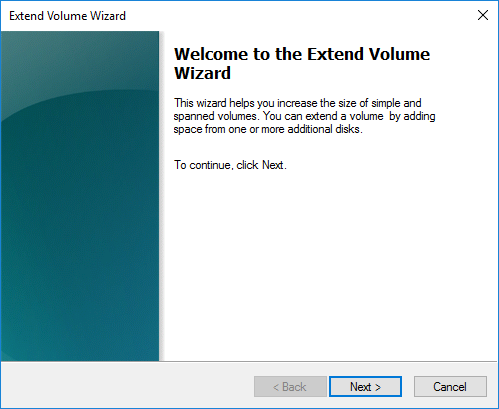
- The Extend Volume Wizard will launch; simply click Next until you reach Finish.
![Extend Volume Wizard]()
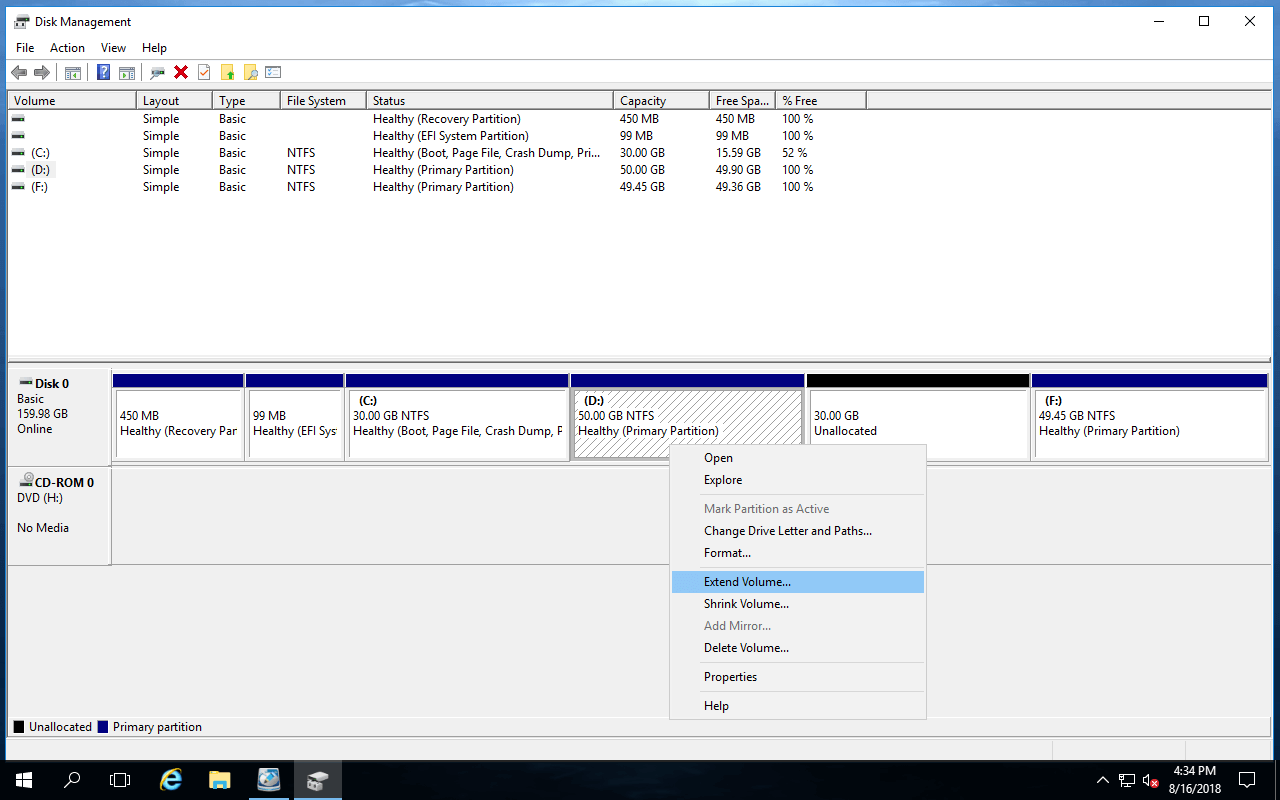
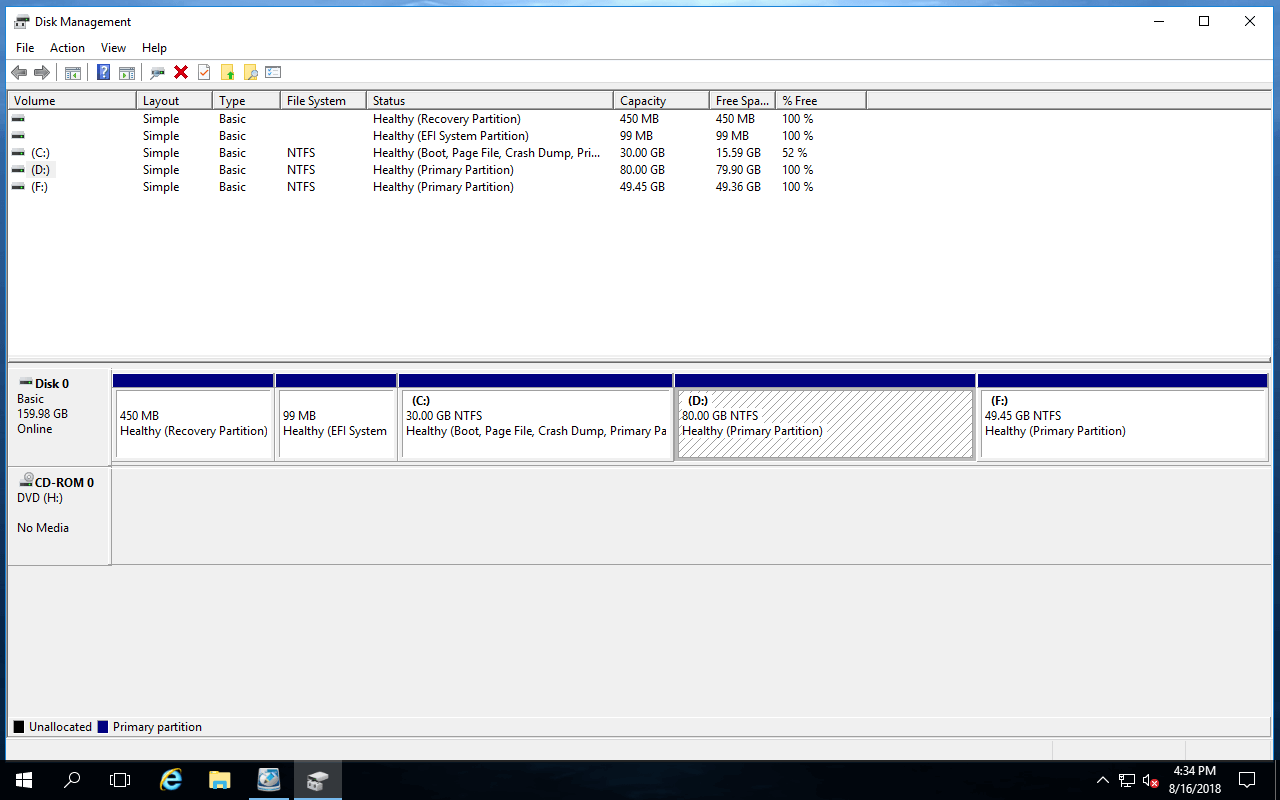
After a short while, the E: drive will be merged into the D: drive.
Restrictions When Merging Partitions in Server 2016 With Disk Management:
- It can only combine a partition into the adjacent volume on its left. For example, you can merge E into D, or combine D into C.
- The left contiguous partition must be formatted with the NTFS file system; any other types of partitions are not supported.
- The two partitions must be of the same type (both Primary or both Logical).
- It cannot merge non-adjacent partitions.
2. A Better Way to Combine Partitions in Windows Server 2016
Compared to Disk Management, NIUBI Partition Editor offers more advantages when merging partitions in Windows Server 2016.
- It is able to combine partitions of different types, regardless of whether they are NTFS or FAT32, Primary or Logical.
- With the exception of the C: drive, either contiguous partition can be selected as the destination. (You cannot merge the system partition into a data volume.)
- You do not have to transfer files manually; all files in a partition will be moved to a root folder in the destination partition automatically.
- It is much easier to use, requiring only a few clicks.
How to Merge Partitions in Windows Server 2016 Without Losing Data:
- Download NIUBI Partition Editor, right-click drive D or E, and select Merge Volume.
![Merge Volume]()
- Check the boxes next to both the D: and E: drives, and then click the drop-down menu at the bottom to select the destination drive. If you select D:, partition E will be merged into D.
![Select partitions]()
- Click OK to return to the main window, where you will see that partitions D and E are combined. A pending operation, "Merge volume E: to D:", is added to the bottom left. Click Apply on the top left to execute the changes.
![Partitions merged]()
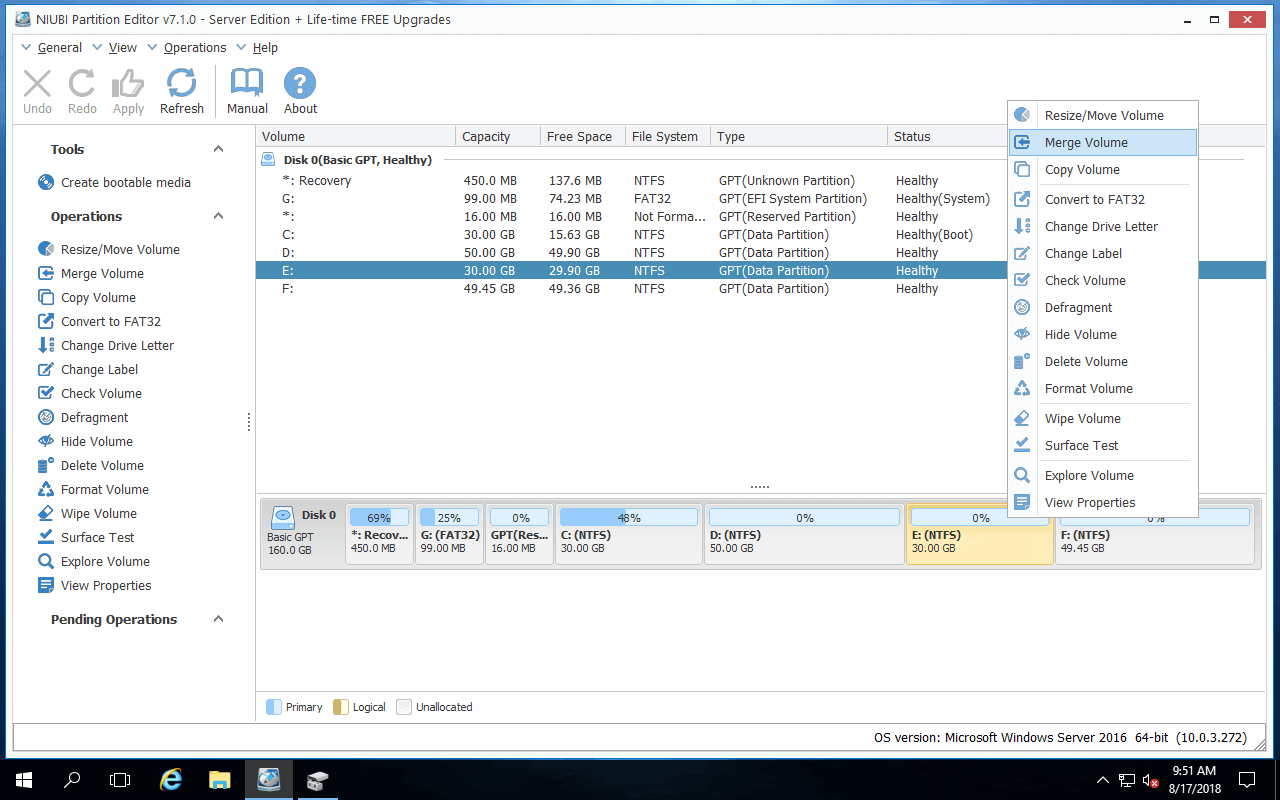
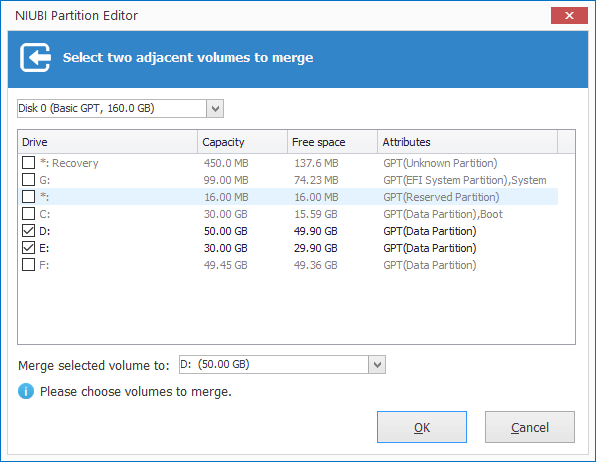
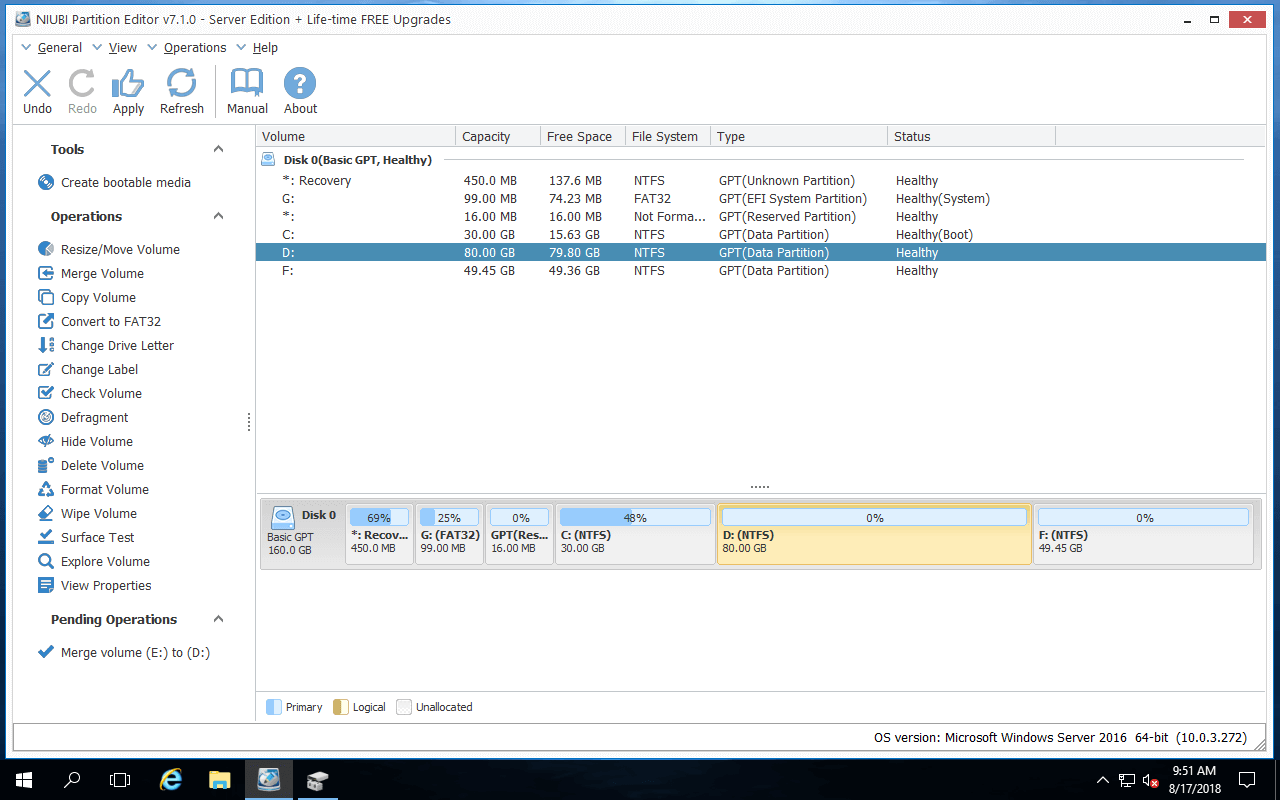
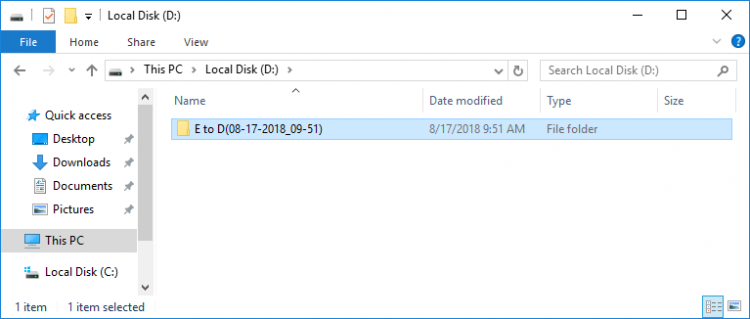
When you open partition D after the merge is complete, you will see a newly created folder named "E to D (date and time)". All files from partition E are automatically moved into this folder.
Watch the video below to see how to merge 2 adjacent partitions in Windows Server 2016:

NIUBI Partition Editor is designed to work in virtual mode by default. The operations you perform will not be executed immediately; instead, they will be listed as pending for preview. You can click "Undo" to cancel any unwanted operations, or click "Apply" to take effect. Unlike many other tools, it features 1-Second Rollback, Cancel-at-will, and Hot Clone technologies to protect your system and data.
3. How to Merge Non-adjacent Partitions
Disk Management cannot move partitions or unallocated space, so it cannot merge two non-adjacent partitions. To achieve this, third-party disk partition software is required.
Steps to Merge Non-adjacent Partitions in Windows Server 2016/2019/2022:
- Back up or transfer all files in the E: drive to another location.
- Right-click the E: drive and select Delete Volume.
- Right-click the D: drive and select "Resize/Move Volume". In the pop-up window, drag the middle of the partition towards the right; the unallocated space will then be moved to the left side.
- Right-click the C: drive and select "Resize/Move Volume" again. Drag the right border towards the right to combine it with this unallocated space.
- Remember to click Apply to execute the changes.
Watch the video below for a demonstration:
4. Disadvantages of Merging 2 Partitions in Windows Server 2016
No matter which tool you use to merge partitions, one of the volumes will be removed. If you want to increase the size of a partition, the best method is shrinking a drive to free up unallocated space, and then adding it to the partition you want to extend. This way, no partition will be deleted. The Operating System, programs, Windows services, and everything else remain exactly the same as before.
Watch the video below on how to shrink and extend partitions in Server 2016:
In addition to shrinking, extending, and merging partitions in Windows Server 2016/2019/2022 and older versions like 2003/2008/2012, NIUBI Partition Editor helps you move, copy, defrag, wipe, optimize, and hide partitions, as well as scan for bad sectors and much more.
 © 2009 - NIUBI Technology All Rights Reserved. |