
Many administrators want to resize the Windows server partitions after running the server for a period of time. Some people want to shrink a large partition to create a new volume, while others want to extend the C drive when it is running out of space. To repartition a hard drive in Windows Server, you may try PowerShell if you prefer not to use third-party software. However, this native command-line tool has many restrictions. This article explains how to shrink and extend partitions with PowerShell in Windows Server 2016/2019/2022. It also explains a better way to resize server partitions using safe software.
How to Shrink a Partition Using PowerShell in Server 2016/2019/2022
- Press the Windows and R keys together on your keyboard to open the Run dialog, type powershell, and press Enter.
- Type diskpart and press Enter in the pop-up Windows PowerShell window.
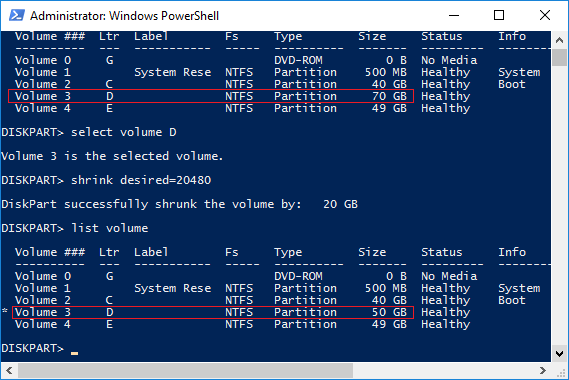
- Type list volume and press Enter; you will then see all single partitions along with their parameters.
- Type select volume D and press Enter. (D is the drive letter or number of the partition that you want to shrink.)
- Type shrink desired=20480 and press Enter. (20480 is the amount of space to shrink in MB. The maximum available amount will be used if you do not specify a value.)
Shortly after, PowerShell will report that DiskPart successfully shrunk the volume by 20GB. Type 'list volume' again; in this example, the D: drive is shrunk from 70GB to 50GB.

How to Extend a Partition Using PowerShell in Server 2016/2019/2022
Before extending a volume with PowerShell, you must delete the adjacent partition to its right. If there is no right adjacent volume, or if you cannot delete it, you cannot extend the volume with PowerShell in Windows Server 2016/2019/2022.
You cannot extend a partition by shrinking another one. If you attempt to extend the C: drive with PowerShell after shrinking the D drive, you will receive a Virtual Disk Service error: The size of the extent is less than the minimum.
Steps to Extend Partition C With PowerShell in Windows Server 2016/2019/2022:
- Transfer all files in the adjacent partition on the right (D:) (which may be E: on some servers) to another location.
- Type diskpart and press Enter in the PowerShell window.
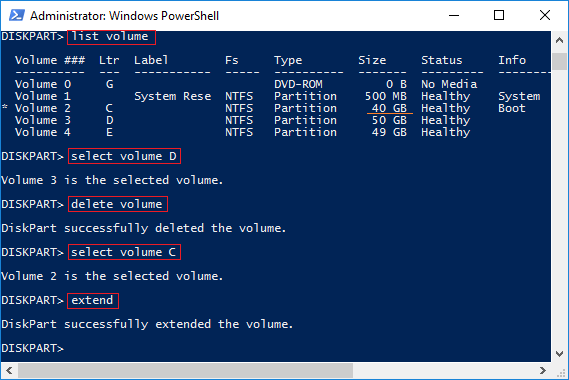
- (Optional) Type list volume and press Enter.
- Type select volume D and press Enter.
- Type delete volume and press Enter.
- Type select volume C and press Enter.
- Type extend and press Enter.
Within moments, the system C drive is increased from 40GB to 110GB. (Note: If there is 20GB of unallocated space behind the D drive, this type of space will not be listed in DiskPart.)

A Better Way to Resize Partitions in Windows Server
There are many limitations when resizing partitions with PowerShell in Server 2016/2019/2022. For example:
- Only NTFS partitions can be shrunk and extended; FAT32 and any other types are not supported.
- Unallocated space can only be generated on the right side while shrinking a partition.
- If there are some "unmovable" files in a partition, PowerShell can only free up a small amount of space, even if there is a large amount available.
- Unallocated space can only be used to create a new volume; it cannot be moved or used to extend other partitions.
- All operations are executed immediately without preview.
With NIUBI Partition Editor, there are no such limitations. You can generate unallocated space on either the left or right side when shrinking a partition. Furthermore, you can extend a partition using contiguous unallocated space from either side. If the unallocated space is non-adjacent, you can move it and combine it with another partition on the same disk.
Download NIUBI Partition Editor and follow the steps in the videos below to shrink and extend volumes in Windows Server 2016.
How to Extend C: Drive by Shrinking Another Volume:
How to Extend D: Drive by Shrinking Another Volume:
- If you want to shrink a partition to extend a non-adjacent volume, there is an additional step required to move the unallocated space.
- The steps remain the same whether you run a physical server with SSDs, HDDs, and hardware RAID, or a virtual server in VMware/Hyper-V.
- If there is no available free space on a disk, you can clone the disk to a larger one or move a partition to another disk. When cloning a disk, you can extend partitions using the extra disk space.
Unlike many other tools, NIUBI Partition Editor features innovative technologies to protect your system and data.
- Virtual Mode - All operations will be listed as pending for preview; real disk partitions won't be changed until you click "Apply" to confirm.
- Cancel-at-will - If you applied incorrect operations, you can cancel the ongoing operations without destroying partitions.
- 1-Second Rollback - If any error is detected while resizing a partition, it automatically reverts the server to its original status instantly.
- Hot Clone - Clone disk partitions without server interruption. You can clone the system disk before any operations or regularly as a backup.
Besides shrinking, extending, moving, and copying disk partitions, NIUBI Partition Editor helps you merge, convert, defrag, wipe, optimize, and hide partitions, as well as scan for bad sectors, and much more.
 © 2009 - NIUBI Technology All Rights Reserved. |