
Disk partitions are initially allocated by OEM manufacturers or by server administrators when installing the Operating System. Is it possible to adjust partition sizes without losing data after running the server for a period of time? The answer is yes. There are two ways to repartition a hard drive in Windows Server 2016/2019/2022 using either native tools or third-party disk partition software. You can select the appropriate method based on your disk partition configuration.
Repartition a Hard Drive for Windows Server Without Third-Party Software
There are two native tools to help repartition a hard drive in Server 2016/2019/2022: Disk Management and DiskPart. Disk Management has a graphical interface with a built-in wizard, whereas DiskPart works via the command prompt. They function in different ways, but they share the same restrictions.
Both native tools can help you shrink an NTFS partition to create a new volume, or extend an NTFS partition by deleting the adjacent volume on its right. If you want to perform other operations, such as shrinking or extending a FAT32 partition, or extending a partition by shrinking another one, neither native tool can help you.
- How to Shrink Partition With Server 2016 Disk Management
- How to Shrink Server 2016 Partition With DiskPart Command
- How to Extend Partition With Server 2016 Disk Management
- How to Extend Server 2016 Partition With DiskPart Command
If you want to adjust partition sizes in Windows Server 2016/2019/2022 without these limitations, you need to run third-party software. There are many choices available, but it is highly recommended to back up your data first and choose safe software, as there is a potential risk of system and data damage when repartitioning a disk drive. Unlike many other tools, NIUBI Partition Editor features powerful technologies to protect your system and data, for example:
- Virtual Mode - All operations will be listed as pending for preview; real disk partitions won't be changed until you click "Apply" to confirm.
- Cancel-at-will - If you applied incorrect operations, you can cancel the ongoing operations without destroying your partitions.
- 1-Second Rollback - If any known error is detected while resizing a partition, it automatically reverts the server to its original status instantly.
- Hot Clone - Clone a disk partition in Windows without rebooting. You can clone the system disk regularly as a backup and boot from the cloned disk immediately if needed.
How to Repartition a Hard Drive in Server 2016/2019/2022
Whether you use a physical server with SSDs, HDDs, and hardware RAID, or a virtual server in VMware/Hyper-V, you can shrink one partition to expand another without losing data as long as there is free space available on the same disk. The steps remain exactly the same no matter which storage device you use.
After downloading and launching NIUBI Partition Editor, you will see the main window. All disks are listed on the right side with their partition structure and other relevant information. You will see the parameters of each partition at the top. Available operations for the selected disk or partition are listed on the left side and can also be accessed by right-clicking.
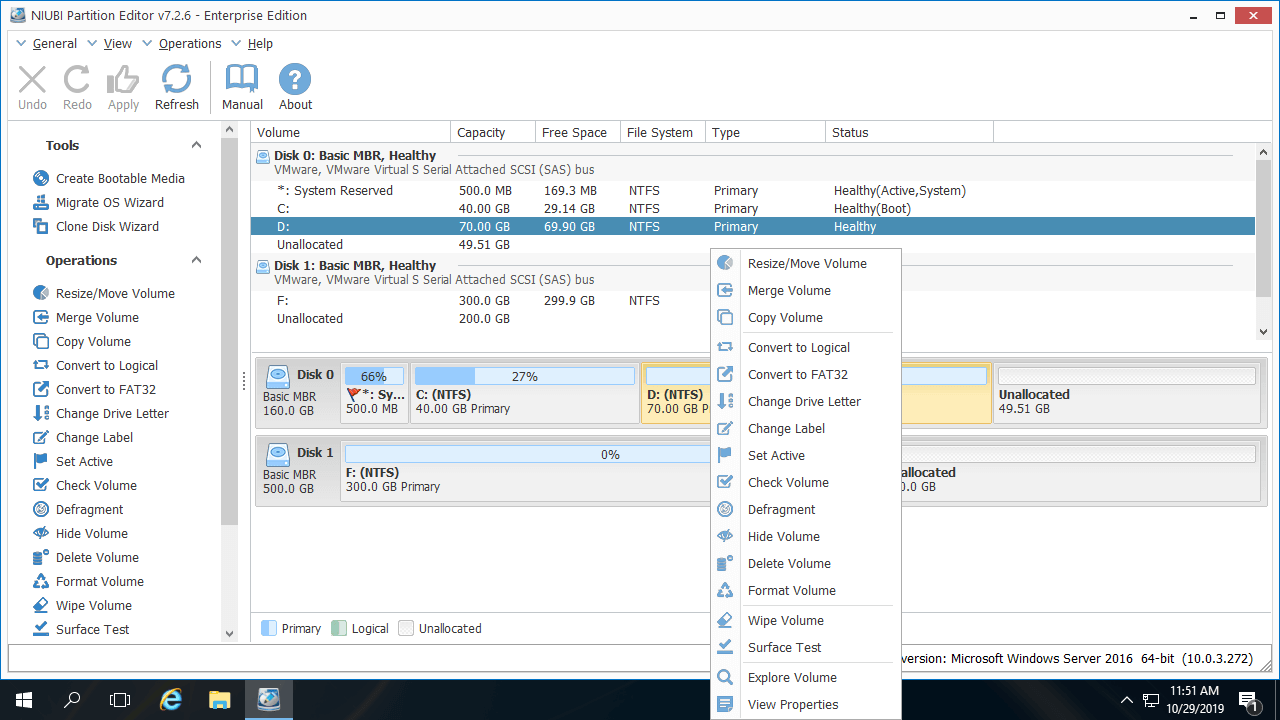
How to Repartition a Hard Drive in Windows Server 2016/2019/2022 Without Losing Data:
- Right-click an NTFS or FAT32 partition (such as D:) and select "Resize/Move Volume". In the pop-up window, drag either border towards the other side. If you drag the left border towards the right, unallocated space will be created on the left side after resizing.
- If you want to create new partitions, right-click this unallocated space and select "Create Volume". If you want to extend another partition (such as C:), right-click it and select "Resize/Move Volume" again. Then, drag the partition border towards the unallocated space to combine them.
- Click Apply on the top left to execute the changes. (All operations prior to this step only work in virtual mode.)
How to Extend C: Drive by Shrinking Other Volumes:
How to Extend D: Drive by Shrinking Other Volumes:
Adjust Partition Sizes in Server 2016/2019/2022 With Another Disk
If there is no available free space on a disk, there are two alternative ways to repartition your hard drive without losing data:
- If you use a physical server, you can clone the disk to a larger one and extend the partition(s) with the extra disk space.
- If you use a virtual server, you can expand the virtual disk in VMware or Hyper-V. After doing so, the additional space will be shown as "unallocated" at the end of the original virtual disk. You can then merge the unallocated space into the partition(s) you want to extend.
Besides repartitioning hard drives in Windows Server 2016/2019/2022/2025 and older versions like Server 2003/2008/2012, NIUBI Partition Editor helps you perform many other disk partition management operations.
 © 2009 - NIUBI Technology All Rights Reserved. |