
Resizing a partition means changing the size of an allocated partition without losing data. To resize a partition in Windows Server 2016, there are two options: running the native Disk Management tool or using third-party software. Disk Management is safe to adjust partition sizes in most cases, but it has many limitations. Third-party disk partition software is much more powerful, but unreliable tools may cause system or partition damage. This article explains how to resize a Server 2016 partition with Disk Management and reliable partition software. Follow the corresponding method according to your own disk partition configuration.
1. Resize Windows Server 2016 Partition With Disk Management
To help change partition sizes in Windows Server 2016, Microsoft provides Shrink Volume and Extend Volume functions within the native Disk Management tool. "Shrink Volume" is used to shrink a partition without losing data. "Extend Volume" is used to increase partition size when there is contiguous unallocated space on the right side. Both functions support NTFS partitions only. It is easy to resize a Server 2016 partition with Disk Management, but the problem is that it cannot extend a partition by shrinking another one.
To Shrink Server 2016 Partition:
- Press the Windows + X keys together on your keyboard and click Disk Management from the list.
- Right-click the NTFS drive that you want to decrease and select Shrink Volume.
- Enter the amount of space in MB, and then click Shrink to execute.
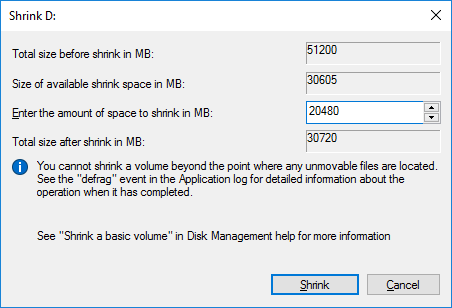
In some cases—for example, if there are unmovable files in this partition or it has a file system error—Disk Management cannot shrink the partition.
To Extend Server 2016 Partition:
- Open Disk Management.
- Right-click the partition that has adjacent unallocated space on its right and then click Extend Volume.
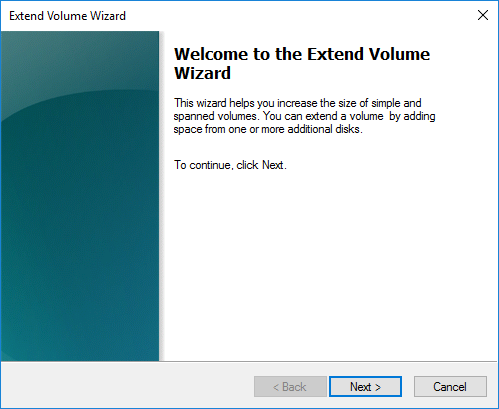
- In the Extend Volume Wizard window, simply click Next until you reach Finish.
The Shrink Volume function can only shrink a partition towards the left and create unallocated space on the right. If you want to shrink the D drive to expand the C drive with Disk Management, it is impossible. This is because the unallocated space created by shrinking the D drive is always non-adjacent to the C drive. This is the reason why many people report that Extend Volume is greyed out for the C drive.
2. How to Resize Server 2016 Partition on SSD/HDD
Disk partition software has no such limitations, and it is much easier to resize a server partition with these tools. However, not all software can accomplish this task safely.
There is a potential risk of data loss and system damage while resizing a Server 2016 partition because all associated parameters must be modified, files must be moved, and the system boot record must be updated correctly. Any slight error could cause a boot failure and data loss. If this happens, it takes a long time to restore everything.
Unlike other tools, NIUBI Partition Editor features powerful technologies to protect your system and data, for example:
- Virtual Mode - All operations will be listed as pending for preview, and real disk partitions won't be changed until you click "Apply" to confirm.
- Cancel-at-will - If you applied incorrect operations, you can cancel the ongoing operations without damaging your partitions.
- 1-Second Rollback - If any error is detected while resizing partitions, it automatically reverts the server to its original status instantly.
- Hot Clone - It can clone a disk partition without rebooting the server. Therefore, you can clone the system disk before resizing partitions or regularly as a backup. Whenever the system disk goes down, you can boot from the cloned disk directly without requiring a long time to restore.
In addition, it is 30% to 300% faster because of its advanced file-moving algorithm.
Download NIUBI Partition Editor, and you will see all disks with a graphical partition structure on the right side. Available operations for the selected disk or partition are listed on the left side and can also be accessed by right-clicking.
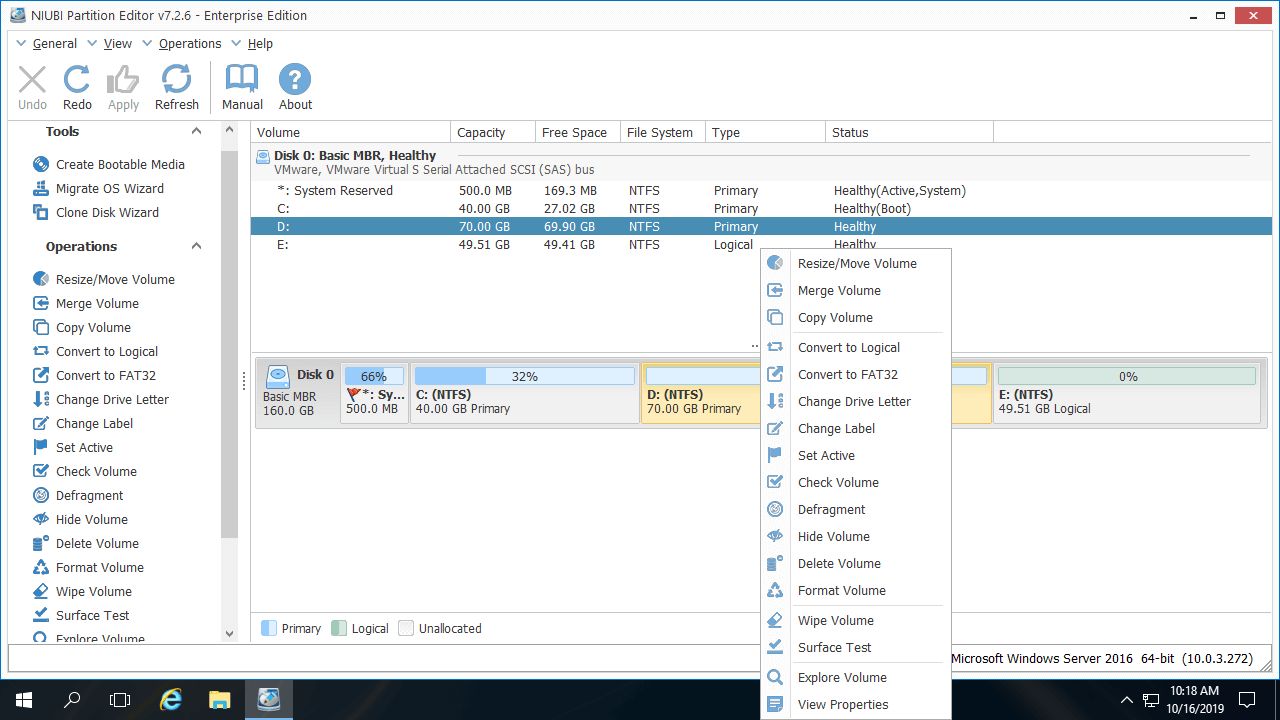
How to Resize Partition in Windows Server 2016 Without Losing Data:
- Right-click an NTFS or FAT32 partition (such as D:) and select "Resize/Move Volume". In the pop-up window, drag either border towards the other side. If you drag the left border towards the right, unallocated space is created on the left side of this partition.
- If you want to create new partitions, right-click this unallocated space and select "Create Volume". If you want to extend another partition (such as C:), right-click it and select "Resize/Move Volume" again. Then, drag the right border towards the right to combine this unallocated space.
- Click Apply on the top left to execute the changes. (All operations prior to this step work only in virtual mode.)
Video Guide to Resize Server 2016 Partitions:
- While shrinking a partition, besides dragging the border, you may enter an exact amount manually.
- If you want to extend a non-adjacent partition, there is an additional step required to move the unallocated space.
- If there is no available free space on the same disk, you can copy the disk to a larger one and extend the partition(s) with the extra disk space.
3. How to Resize Server 2016 RAID 1/5/6/10 Partition
It is common to use hardware RAID arrays in a server. If you want to resize a RAID partition in Windows Server 2016, do not break the array or perform any operations on the RAID controller; simply check if there is free space in the same RAID array. The "same array" refers to Disk 0, 1, etc., as shown by NIUBI Partition Editor.
To the Operating System and NIUBI Partition Editor, there is no difference whether you use physical hard disks or RAID arrays. It does not matter if you use RAID 1, 5, 6, or 10 with any brand of RAID controller.
How to Resize Server 2016 Partition in VMware/Hyper-V
If you want to resize a partition in VMware/Hyper-V running Windows Server 2016, you just need to install NIUBI Partition Editor on this virtual server and follow the steps above.
The only difference is that if there is no available free space on a disk, you can expand the VMware and Hyper-V virtual disks directly. The additional space will be shown as unallocated at the end of the original virtual disk. You can then merge this unallocated space into the partition(s) that you want to extend. Therefore, you do not need to clone the disk to a larger one.
In Summary
To resize a partition in Windows Server 2016/2019/2022/2025, the native Disk Management utility is not the best tool due to its many limitations. It is highly recommended to back up the server and run reliable partition software. Because of its powerful data protection technologies, fast file-moving algorithm, and other benefits, NIUBI Partition Editor is the best tool to help you accomplish this task. To resize a Server 2016 partition, you just need to click, drag, and drop on the disk map. Besides shrinking and extending partitions, it helps you perform many other disk and partition management operations.
 © 2009 - NIUBI Technology All Rights Reserved. |