
Many Windows servers run as virtual machines in VMware. While running virtual servers offers many advantages, the C drive in a virtual machine can still run out of space, just like on a physical server. To solve this problem, you need to extend the C drive with free space from another virtual partition. This article explains how to resize partitions and extend the C drive in VMware with Windows Server 2016/2019/2022.
Resize VMware Partition in Windows Server Without Third-Party Software
If you run Windows Server 2016/2019/2022 as a virtual machine in VMware, resizing a virtual partition is no different from doing so on a physical server. You can achieve this using two types of tools: Windows native Disk Management or the DiskPart command-line utility, and third-party disk partition software.
Windows Disk Management features a graphical interface, whereas DiskPart operates via the command prompt. Although they work in different ways, they share the same restrictions when shrinking and extending partitions. Because of these restrictions, neither native tool is the optimal choice.
- How to Shrink Partition in Server 2016 Disk Management
- How to Extend Partition in Server 2016 Disk Management
- How to Shrink Partition With DiskPart Command
- How to Extend Partition With DiskPart Command
Third-party software is much more powerful. However, it is highly recommended to back up your data first and choose safe utilities; otherwise, you face potential risks of system damage and data loss. Unlike many other tools, NIUBI Partition Editor incorporates innovative technologies to safeguard both system and data.
- Virtual Mode - All operations will be listed as pending for preview, and real disk partitions won't be changed until you click "Apply" to confirm.
- Cancel-at-will - If you applied incorrect operations, you can cancel the ongoing operations without damaging partitions.
- 1-Second Rollback - If any known error is detected while resizing partitions, it automatically reverts the server to its original status instantly.
- Hot Clone - Clone disk partitions without server interruption; you may clone the system disk before any operation or regularly as a backup.
To resize a virtual partition in VMware with Server 2016/2019/2022, you just need to install NIUBI in VMware, then drag and drop on the disk map.
Extend C Drive in VMware Server 2016/2019/2022 With Safe Tool
After downloading and launching NIUBI Partition Editor, you will see all disks with a graphical partition structure on the right side. Available operations for the selected disk or partition are listed on the left side and via right-clicking.
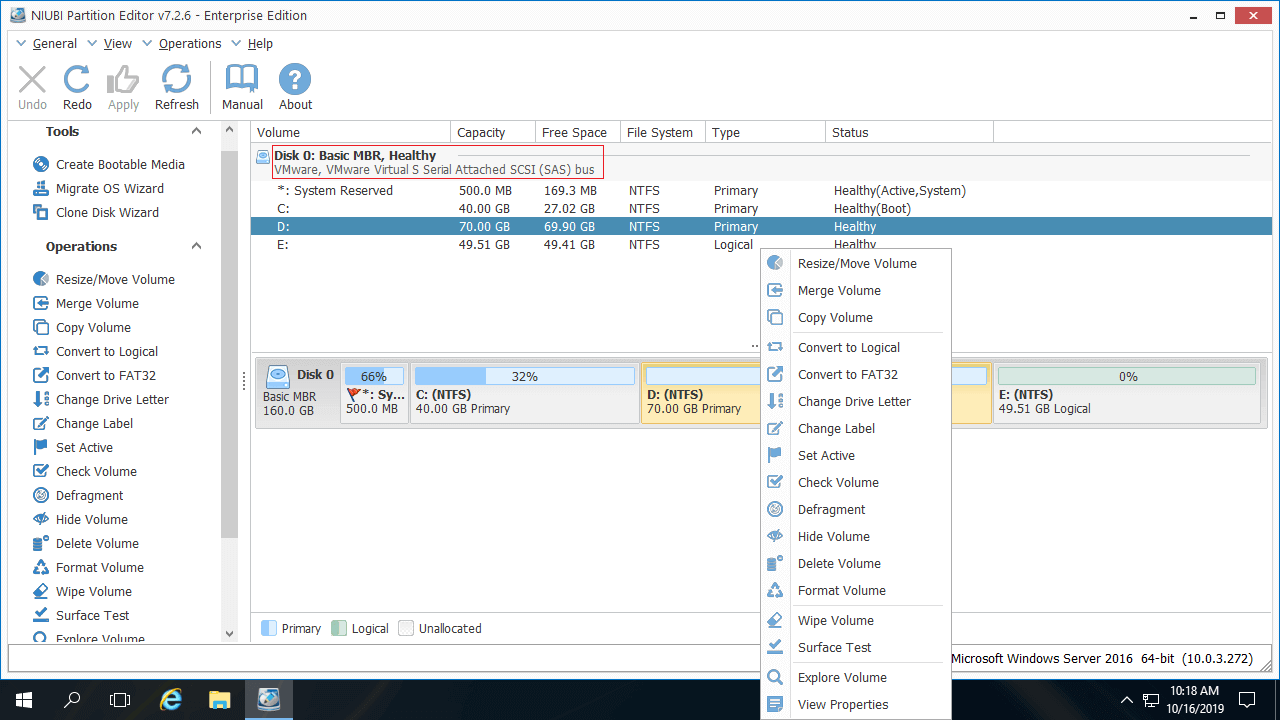
On a physical server, NIUBI will show every disk with its real model. In a VMware virtual machine, all disks are shown as VMware Virtual.
To extend system partition C in VMware, first check if there is enough free space in the contiguous partition D. If so, shrink it to get unallocated space, and then add it to the C drive. If there is not enough free space in drive D, you can shrink E or any other non-adjacent partition on the same virtual disk. In that case, there is an additional step to move unallocated space to the left before adding it to the C drive.
Steps to Extend C Drive in VMware Windows Server 2016/2019/2022:
- Right-click drive D: and select "Resize/Move Volume". In the pop-up window, drag the left border towards the right or enter an amount directly in the "Unallocated space before" box.
- Right-click the C: drive and select "Resize/Move Volume" again, then drag the right border towards the right to combine this contiguous unallocated space.
- Click Apply on the top left to execute. The process is now complete.
Disk partitions won't be changed until you click Apply to confirm. Before this step, you can click Undo to cancel any unwanted pending operations.

How to Extend VMware Partition When Virtual Disk Is Full
On a physical server, if there is no available free space on the same disk, no software can add space from another separate disk. You have to clone the disk to a larger one and expand the system partition (and other volumes) with extra disk space. However, in VMware, it is much easier.
- Follow the steps to expand the virtual disk in VMware. The additional space will then be shown as unallocated at the end of the original virtual disk.
- Follow the steps in the video to merge the unallocated space into the C drive (and other partitions).
In Summary
To resize a partition and extend the C: drive in VMware running Windows Server 2016/2019/2022, the process is no different from a physical server, as long as there is available free space on the same virtual disk. If there is not enough free space in the other data volumes on the same disk, you can expand the VMware virtual disk and then extend the C drive with the extra unallocated space. In addition to shrinking, moving, and extending partitions in Server 2016/2019/2022/2025 and previous Server 2003/2008/2012, NIUBI Partition Editor helps you perform many other disk partition management operations.
 © 2009 - NIUBI Technology All Rights Reserved. |