
When the system partition C is getting full, if you back up everything, recreate partitions, and restore, it may waste an entire weekend. It is much easier and faster to shrink a data volume and extend the system partition. However, this is not an easy task for many server administrators. Because the system partition is where the Operating System is installed and boots from, any error could cause a system boot failure. This article explains how to extend system partition C in Windows Server 2016 using the native Disk Management tool and safe partition software.
1. Extend System Partition in Server 2016 Disk Management
Some people prefer to use Windows native utilities, thinking they offer the best compatibility. There is indeed a built-in Disk Management tool that is able to shrink and extend partitions. The benefit is that it can resize a partition without rebooting the server. However, it is not entirely risk-free; for example, data corruption can sometimes occur when shrinking a logical drive on an MBR disk.
Windows Disk Management is not the best tool to extend the system partition in Windows Server 2016 because it can only extend an NTFS partition by deleting the adjacent volume on its right. In addition, the two partitions must be of the same type (both Primary or both Logical).
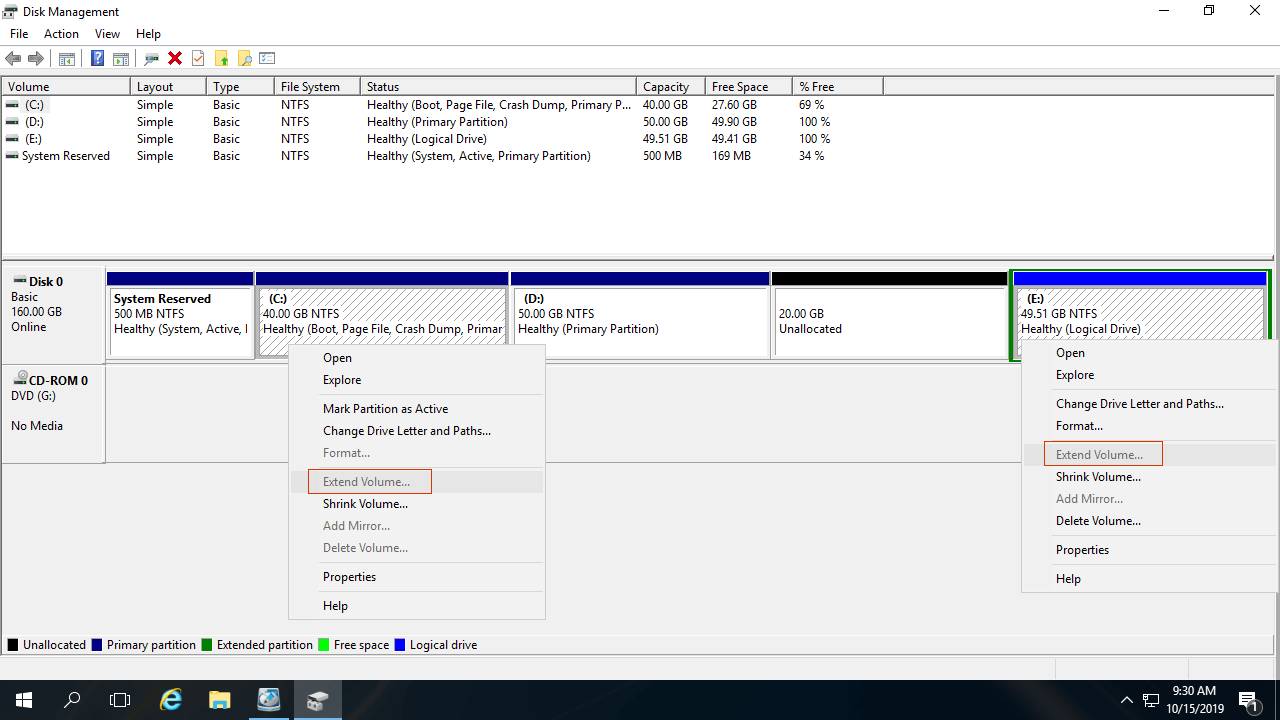
As you can see in the screenshot, Extend Volume is disabled for the C and E drives after I shrank D in Disk Management. This occurs because:
- The Extend Volume function can only merge unallocated space into the adjacent partition on its left (which must be NTFS).
- Shrink Volume can only create unallocated space on the right side while shrinking a partition.
After shrinking the D: drive, the 20GB of unallocated space is non-adjacent to the C: drive and is located to the left of E, so the Extend Volume option is grayed out.
To extend the OS partition in Windows Server 2016 without any third-party software, your disk partition configuration must meet all of the requirements below:
- There must be a third partition (such as E:) with enough free space to save all files from D.
- No programs or Windows services can be installed on the D drive, as it must be deleted.
- Drive D must be a Primary partition.
How to Extend System Partition C in Windows Server 2016 via Disk Management:
- Transfer all files from drive D to E.
- Right-click the D drive in Disk Management and select Delete Volume.
- Right-click the C drive and select Extend Volume.
- Click Next until you reach Finish in the pop-up Extend Volume Wizard window.
If D is a Logical drive or you cannot delete this partition, disk partition software is required to extend the system volume in Windows Server 2016.
2. Extend Server 2016 System Drive With Safe Partition Editor
Unlike Disk Management, NIUBI Partition Editor can resize both NTFS and FAT32 partitions, and it can create unallocated space on either the left or right side when shrinking a partition. It is able to merge unallocated space into either contiguous or non-adjacent partitions on the same disk.
Unlike many other tools, NIUBI Partition Editor features powerful technologies to protect your system and data, for example:
- Virtual Mode - All operations will be listed as pending for preview; real disk partitions won't be changed until you click "Apply" to confirm.
- Cancel-at-will - If you applied incorrect operations, you can cancel the ongoing operations without damaging partitions.
- 1-Second Rollback - If it detects an error while resizing a partition, it automatically reverts the server to its original status instantly.
Because it doesn't require a server reboot to clone a disk partition with NIUBI Partition Editor, you can clone the system disk regularly. If the system is damaged, you can swap the drives to boot from the cloned disk immediately, without wasting time restoring from an image backup.
After downloading and launching NIUBI Partition Editor Server, you will see all disks with graphical partition structures on the right side. Available operations for the selected disk or partition are listed on the left side and can also be accessed by right-clicking.
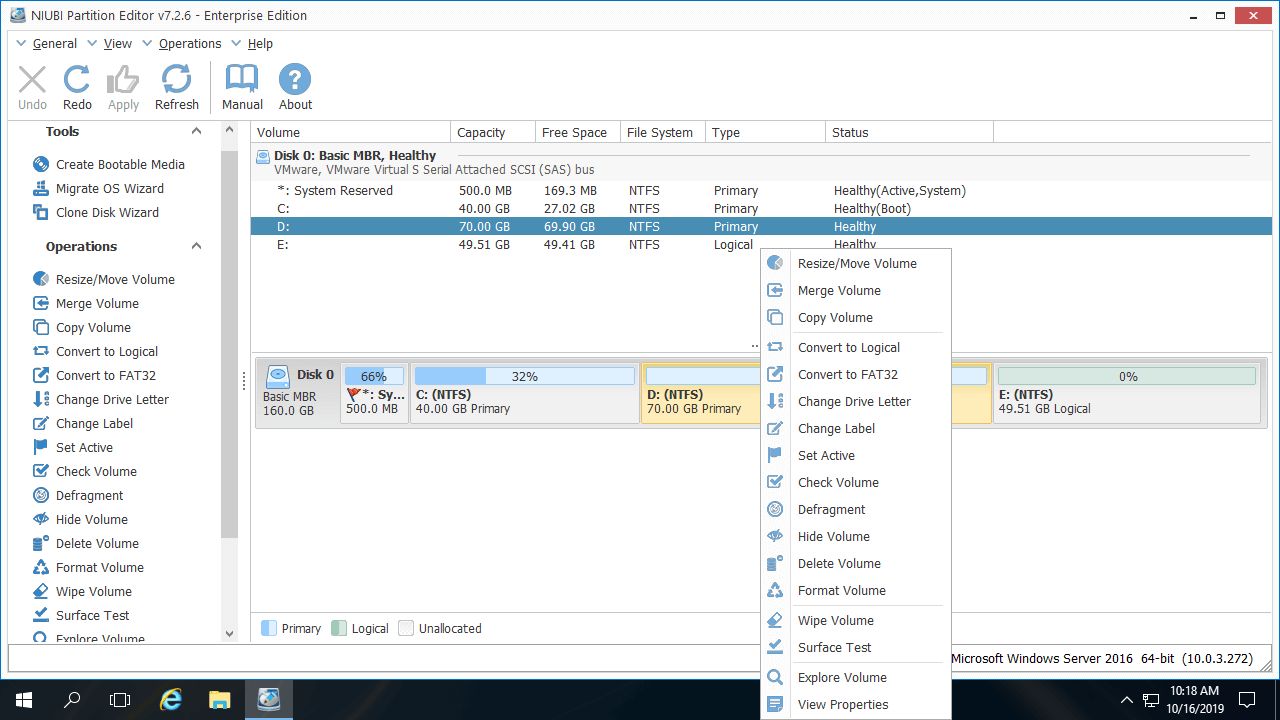
When extending the system partition in Windows Server 2016, first check if there is free space in other volumes on the same disk. If so, follow the steps below. Otherwise, jump to the next section.
How to Extend System Partition in Windows Server 2016 Without Losing Data:
- Right-click the D: drive and select "Resize/Move Volume". Drag the left border towards the right in the pop-up window; this partition will then be shrunk, and some unallocated space will be created on the left side of it.
- Right-click the C: drive and select "Resize/Move Volume" again. Drag the right border towards the right to combine this unallocated space.
- Click Apply on the top left to execute the changes. (All operations prior to this step work only in virtual mode.)
If there is not enough free space in the contiguous partition D, you can shrink any non-adjacent volume on the same disk. However, before adding the unallocated space to the C drive, there is an additional step to move partition D to the right.

If you use any type of hardware RAID arrays, such as RAID 1, 5, 6, or 10, do not break the array or perform any operations on the RAID controller; simply follow the same steps above. There is no difference in extending a volume on a physical disk versus a RAID array.
Extend System Volume With Another Disk
If there is no other partition on the same disk, you can clone the system disk to a larger one and extend the OS partition using the additional disk space.
Follow the steps in the video below to expand the system partition in Windows Server 2016 by cloning the disk:
If there is another data volume on the same disk, but it does not have enough free space, in addition to cloning the system disk to a larger one, you can move a data partition to another disk, then delete it, and add its space to the C drive.
3. Extend Server 2016 System Drive in VMware/Hyper-V
If you want to extend the system partition in Hyper-V or VMware running Server 2016 as a virtual machine, the steps are the same as long as there is available free space on the same virtual disk. If the virtual disk is full, you can expand it directly.
After expanding the virtual disk, the additional space will be shown as unallocated at the end of the original disk. You can then merge this unallocated space into the system partition and other volumes.
In Summary
Windows Disk Management cannot extend a volume in Windows Server 2016 by shrinking other volumes. To extend the system partition in Windows Server 2016, reliable partition software is a better choice. Because of its powerful data protection abilities, fast file-moving algorithm, and other benefits, NIUBI Partition Editor is the best tool to accomplish this task. Determine your server's disk partition structure and follow the appropriate method described above. Besides extending partitions in Windows Server 2016/2019/2022/2025 and older versions, it helps you perform many other disk partition management operations.
 © 2009 - NIUBI Technology All Rights Reserved. |